
Overview
Siit introduces dedicated Application and Equipment fields in requests to provide a clearer structure, better reporting, and more powerful automation capabilities.
Instead of relying on services alone or custom fields, requests can now be explicitly associated with:
-
a Service (what type of request it is),
-
an Application (which software is involved),
-
an Equipment (which asset is concerned).
This article explains:
-
what these new fields are,
-
how they work in practice,
-
and how to configure your services to get the full value from them across manual, form-based, and AI-driven request creation.
Why Applications and Equipment Matter in Requests
With dedicated fields, you unlock:
Better data visibility
Each request is now clearly linked to the exact application or equipment involved, creating a consistent and reliable data model.
More granular reporting
You can analyze:
-
most requested applications,
-
most impacted equipment,
-
trends per app or asset over time.
This enables more actionable dashboards and operational insights.
Stronger automation and workflows
Workflows can now react directly to:
-
the associated application,
-
or the associated equipment,
unlocking app-specific or asset-specific automation (provisioning, approvals, notifications, integrations).
Understanding the New Request Fields
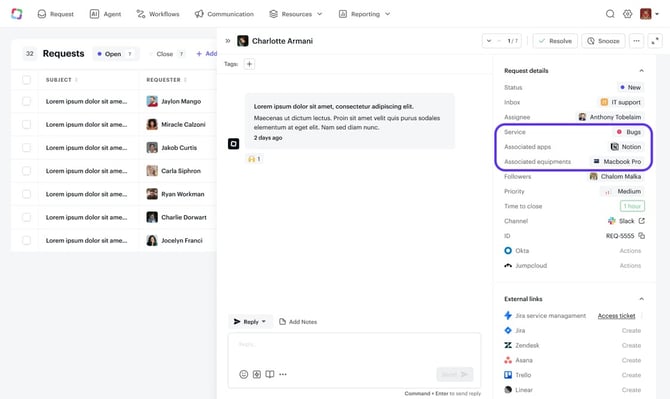
Each request now includes:
-
Service
Defines the type of request (e.g. App Access Request, Equipment Issue). -
Associated app
Identifies the software application involved. -
Associated equipment
Identifies the physical asset involved.
These fields are visible only to users with the appropriate permissions (manage applications / manage equipment), ensuring controlled access to sensitive data.
.jpg?width=670&height=174&name=unnamed%20(1).jpg)
How Applications and Equipment Are Filled in Requests
How these fields are populated depends on how requests are created in your workspace.
1. Auto-submit request mode (Slack / Teams messages)
In auto-submit mode, any employee message automatically creates a Siit request without a predefined service.
How it works:
-
A request is created with no Service, Application, or Equipment.
-
An admin qualifies the request manually:
-
assigns the correct Service (e.g. App Access Request),
-
selects the relevant Associated app or Associated equipment.
-
This approach is flexible and well-suited for teams that prefer free-form employee requests with admin qualification.
2. Submit button / Service form mode
When employees submit requests using a Submit button or from the Service Catalog, structured data can be captured upfront.
Prerequisites:
-
A dedicated service must be configured (e.g. App Access Request or Equipment Issue).
-
The service must include a dynamic form with:
-
Select an app for application-related services,
-
Select an equipment for equipment-related services.
-
Result:
-
The Service is automatically assigned.
-
The Associated app or Associated equipment field is automatically populated.
-
No manual qualification is required.
This mode ensures high data quality and faster processing.
3. AI Agent (Playbooks)
When using the AI Agent with a Create a request action in a playbook:
-
The agent can automatically:
-
select the appropriate Service,
-
associate the correct Application or Equipment,
based on employee intent and existing configuration.
-
This enables fully automated request handling while preserving structured data for reporting and workflows.
Best Practices for Service Configuration
To fully benefit from Applications and Equipment fields, services must be designed intentionally.
Create dedicated services per use case
Avoid using the application or equipment itself as the service.
Instead, create clear, functional services such as:
-
Application Access Request/Issue
-
Equipment Request/Issue
Inside each service, make sure to add the corresponding dynamic service:
- "Select an application" for the Application Access Request/Issue service
- "Select and equipment" for the Equipment Request/Issue
.jpg?width=670&height=212&name=unnamed%20(2).jpg)
Make sure to review your workflow accordingly so that you use the combinaison Service/Application in your workflows instead of the Application only.
.png?width=601&height=308&name=unnamed%20(1).png)