
This article is for admins configuring Assist. If you are looking for how to use Assist day to day, see the Assist guide.
Where the settings live
There are different pages, and they do different jobs.
- Settings → AI & Agents → Assist is the workspace page. What you set here applies to every admin. It needs the Assist management permission.
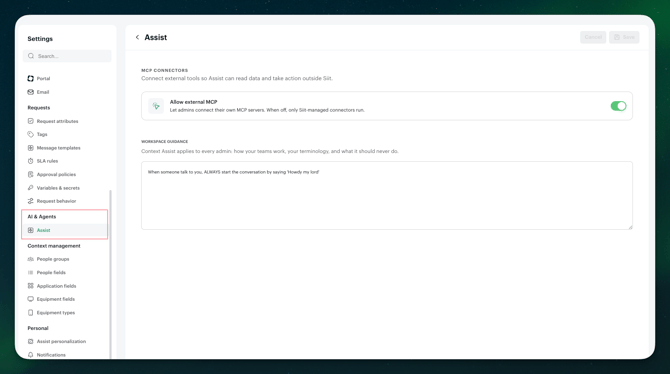
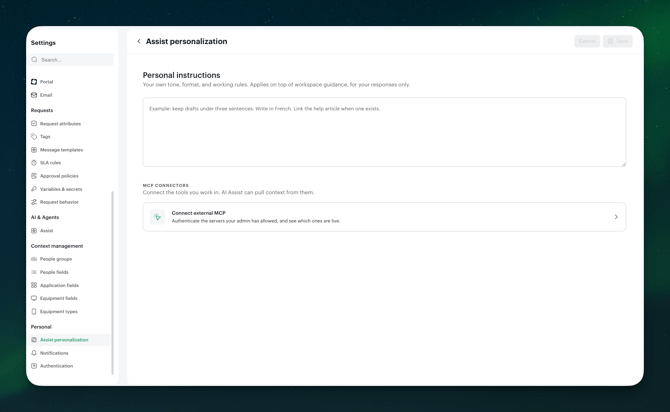
- Settings → Personal → Assist personalization is your own page. Every admin has one, and no permission is needed. Use it to write your personal instructions and to connect your own external MCP servers. What you set here applies to your conversations only.
-
Settings → AI & Agents → Assist usage shows how much of their weekly allowance each admin has used. It needs the Can view Assist usage permission.
Assist is always on for the workspace. There is no global on/off switch. You control who gets it through role permissions.
Who can do what
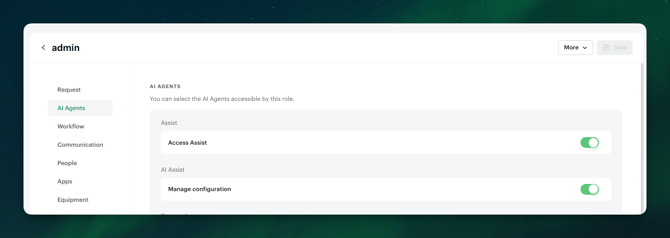
In your Role & Permissions; two permissions govern Assist. All three are on by default for Owners and Super admins.
| Permission | What it allows |
|---|---|
| Can use Assist | Open Assist and run conversations |
| Can manage Assist | Edit workspace guidance and decide whether admins may connect their own MCP servers |
Adjust them per role in your role settings. To take Assist away from a role, remove Can use Assist from it. The button disappears for everyone on that role.
Workspace guidance
Guidance is the context Assist applies to every admin: how your teams work, your terminology, and what it should never do. It is how you stop restating the same background in every conversation, and how two admins asking the same thing get the same shape of answer.
- Go to Settings → AI & Agents → Assist.
- Write your instructions in the Workspace guidance field.
- Click Save. It applies to everyone's next conversation.
What belongs in guidance
- The tone and structure of your knowledge articles, and who they are written for.
- Terms specific to your company, so Assist uses your words rather than generic ones.
- What it should never do. Rules such as "never publish an article without showing it to me first" or "never change an SLA rule" belong here.
What does not belong in guidance
- Credentials, keys, or anything secret. Guidance is visible to every admin who can manage Assist.
- Facts about a single request or a single person. Put that in the conversation instead.
- Anything that changes week to week. Guidance you have to maintain constantly is guidance you will forget to maintain.
Write it the way you would brief a new admin on their first day. Short, specific, and in plain sentences.
Personal instructions
Every admin has their own page at Settings → Personal → Assist personalization. Personal instructions cover your own tone, format, and working rules, and they apply on top of workspace guidance, for your responses only.
Useful examples: keep drafts under three sentences, write in French, link the help article when one exists, always show the filters used before giving a number, always propose the workflow before building it.
External MCP servers
Assist can reach tools outside Siit through MCP connectors, so a conversation can pull context from the rest of your stack instead of stopping at the edge of the service desk.
For the workspace. On Settings → AI & Agents → Assist, the Allow external MCP setting decides whether admins can connect their own MCP servers. When it is off, only Siit managed connectors run.
For each admin. With it on, each admin opens Settings → Personal → Assist personalization, clicks Connect external MCP, and authenticates the servers their workspace allows. They see which ones are live. Connections are personal: a server one admin authenticates is not shared with the others, and it runs with that admin's own credentials.
Need help?
Contact support@siit.io, or ask Assist itself. It knows this Help Center.