
How it works
The integration runs Siit → Freshservice. A request is created in Siit (via Slack, Teams or the Portal), then escalated to Freshservice — manually from the request side panel, automatically via a workflow, or by the AI IT Agent. Siit creates the Freshservice ticket, pre-fills it with the request context, and links both records.
Before you start
- A Freshservice admin to generate an API key.
- The Freshservice workspace(s) and ticket type(s) you want to escalate to.
- Optional: a dedicated “Siit Integration” Freshservice agent, so the connection survives admin turnover.
- In Freshservice, click your profile avatar → Profile settings.
- Copy the API key shown on the right.
- In Siit, go to Settings → Integrations and find Freshservice in the Ticketing section.
- Click Connect.
- Enter your Freshservice domain (e.g.
yourcompany.freshservice.com) and the API key. - Click Authorize. Siit verifies the connection.
- Pick the Freshservice workspace(s) and ticket type(s) to make available for escalation.
Open any Siit request, click Escalate ticket → Freshservice, choose the group, ticket type and priority, fill in the subject and description, and submit. Confirm the ticket appears in Freshservice and the link shows on the Siit request.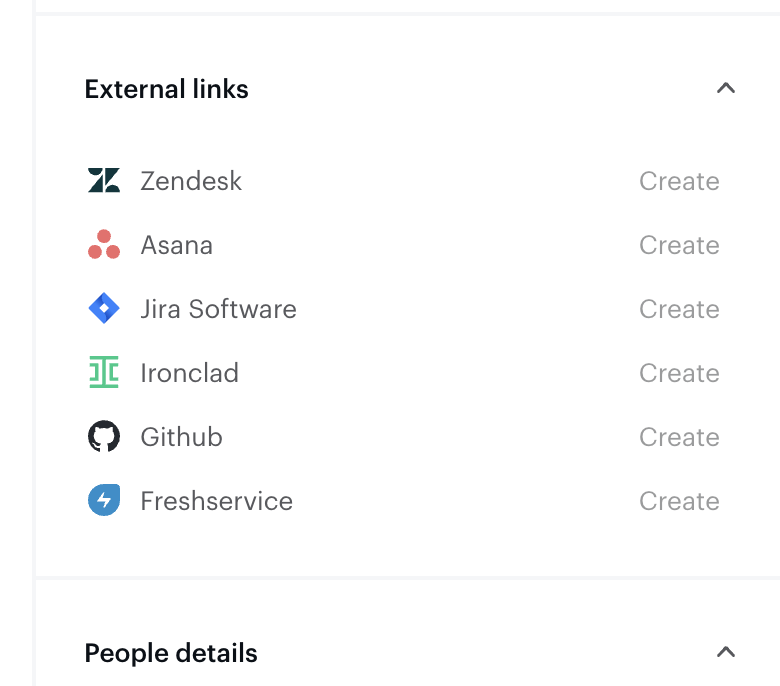
Using it at scale
- Workflow action — add Create Freshservice ticket as a workflow step (e.g. when tag = “Network” → create a ticket in the network group), with approval gating where needed.
- AI IT Agent — inside a playbook,
/Freshservice create ticketlets the agent escalate autonomously, with optional human approval.
Frequently asked questions
Does resolving the Freshservice ticket close the Siit request?
Yes, if you enable it. Freshservice now supports configurable two-way sync: in Settings → Workspace → Integration library → settings, choose what syncs in each direction (resolution, assignee, notes, messages). See the Control what syncs between Siit and your ticketing tool article.
Can I map custom fields?
Standard fields (subject, description, group, ticket type, priority) are supported today. Custom field mapping is on the roadmap.
A group or ticket type is missing from the picker.
The connecting Freshservice agent lacks access to it. Update the agent’s group membership/permissions in Freshservice and re-sync.
“Invalid credentials” on connect.
The API key is wrong or was regenerated, or the agent it belongs to was deactivated. Generate a fresh key and update Siit.