
Use Group Requests when several requests need the same answer, the same assignee, or the same outcome. You group them once and then reply, assign, change priority, resolve, or snooze across all of them from a single overlay, while each requester keeps their own private conversation.
Prerequisites
-
An admin or agent role with permission to act on the requests you want to group.
- You can group requests that already exist, or let a workflow create a group for you, as described below.
-
No plan gating or extra configuration. Grouping is available to every workspace.
Group existing requests from the list
-
Open any view that shows the requests you want to combine, for example Views → My open or Views → Unassigned.
-
Select the requests using the row checkboxes. You can select across pages with Select all.
-
In the bulk action bar at the bottom of the list, click Group.
-
Name and confirm the group. Siit creates a Group Request and the selected rows collapse into a single stacked row labelled with the Group request channel.
.png?width=670&height=302&name=CleanShot%202026-06-01%20at%2014.46.14@2x%20(1).png)
💡 The group inherits the most recent activity time across its children, so it lands wherever the most active request would have landed in the list.
Add a request to an existing group
-
You can add a new request to a group at any time, either from a single request or from the list.
-
From a request: open the request, click the `...` menu in the sidebar, then `Add to group` and pick the target group.
-
From the list: select one or more requests and click `Add to group` in the bulk action bar, then pick the target group.
.png?width=670&height=413&name=image%20(270).png)
Create a group automatically from a workflow
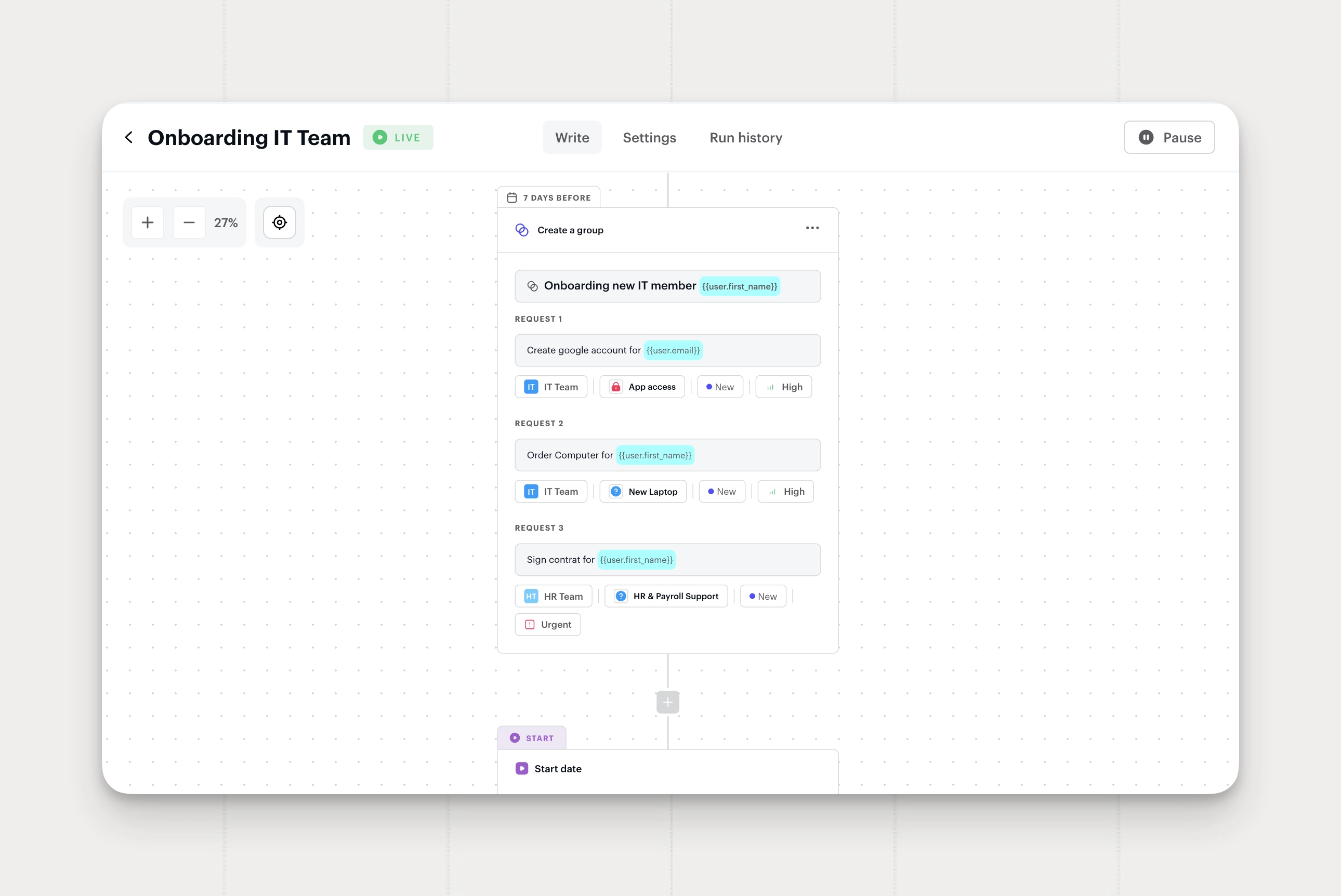
Onboarding and offboarding are rarely one request. The Create a group request action lets a workflow open several related requests at once and keep them together as one group. It is available in Request, People, Date and App access workflows. Your existing Create a request action is unchanged.
- Go to Settings → Workflows and open the workflow you want to change, or create a new one.
- Add an action and choose Create a group request.
- Name the group. You can use variables, for example the employee's name.
- Add the sub-requests, up to 20. Each one has the same fields as a normal request: title, description, inbox, assignee, status, tags, priority and service. Variables work in every field.
- Reorder, duplicate or remove sub-requests until the group looks right.
- On People and Date workflows, choose when the group should be created.
- Save and publish the workflow.
When the workflow runs, Siit creates all the sub-requests together and attaches them to one group. Each sub-request can trigger your Request workflows like any other request.
Example: new hire onboarding
On a People workflow with the Start date trigger, create a group called "Onboarding: {employee name}" with three sub-requests: create google account, order computer, and sign contract. A week before, Siit creates all three as one group.
Open the group and read the timeline
Click the stacked row in the list to open the Group Request overlay. The overlay shows:
-
A combined timeline of every group event from every child, in chronological order.
-
The list of child requests on the side, with each requester, ID, title, status, service and priority.
-
A detailed list of every requester.
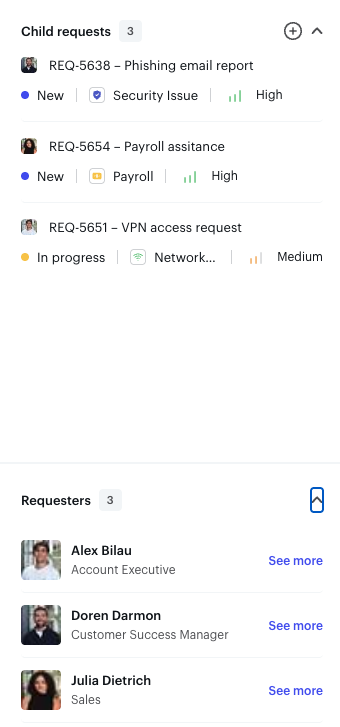
The overlay looks distinct from a standard request conversation on purpose, because what you type here will reach several requesters at once.
Reply or add a note to the whole group
Use the composer at the bottom of the group overlay the same way you would on a single request.
-
Write your reply, or switch to `Note` for an agent-only message.
-
Use requester variables, message templates, mentions, and attachments as usual.
-
Send. Siit broadcasts the message to every child request, and each requester sees a normal one-to-one message in their channel.
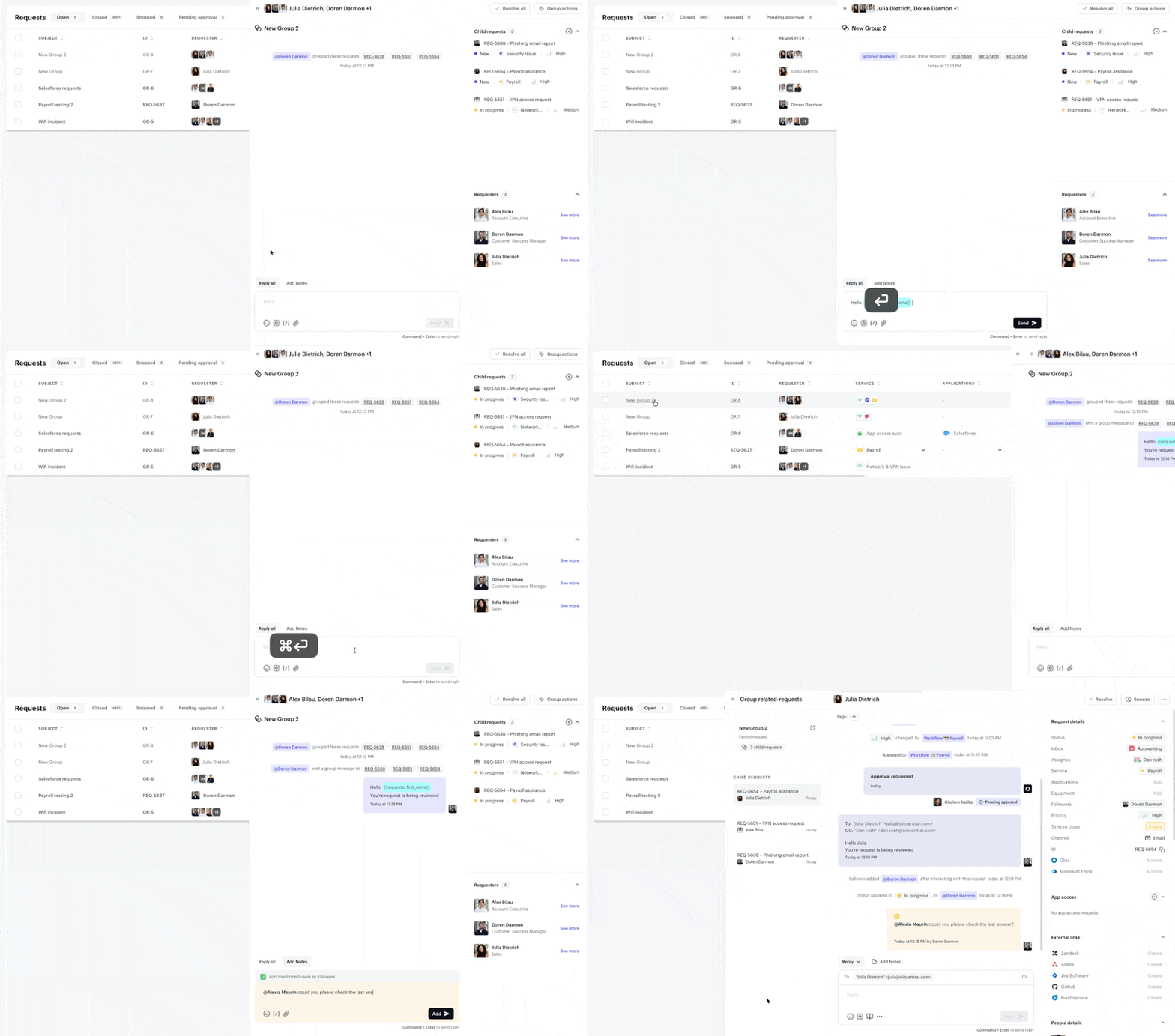
Each requester only ever sees their own thread. The grouping is invisible to them, so write the message as if you were answering one person.
If a child cannot receive the broadcast (for example, the channel is no longer reachable), Siit will show the list of children that received the message.
Apply key actions to the whole group
From the group sidebar, change any of the following and Siit applies the change to every child at once:
-
Status: update status for every child.
-
Assignee: reassigns every child to the chosen agent or inbox.
-
Service: moves every child to the chosen service.
-
Priority: sets the same priority on every child.
-
Followers: add or remove anyone as follower of every child.
-
Tags: add tags to every child.
-
Snooze: snoozes every child until the chosen date.
-
Read: mark all children as read at once
Each change appears on every child's timeline as a normal event, with the same audit trail you would see on a single request.
🙋♂️FAQ
Can a requester see that their request is grouped?
No. Each requester sees a standard one-to-one conversation on Slack, Microsoft Teams, the portal, or email. The group is admin-only.
What happens to SLAs on children inside a group?
Each child keeps its own SLA clock and its own pause and resume behavior. Grouping does not pause or merge SLAs.
Can I bulk-select Group Requests from the table to run more bulk actions?
Yes. You can tick the group row in the list like any other row, and mix it with ungrouped requests in the same bulk action. The action applies to every child of the group, even children that do not match the current view's filters.
You cannot select children individually from the list, because they sit inside the group row. To act on a single child without affecting the others, open the child overlay from the group and run the action there.
What if children have different assignees, priorities, or services before I group them?
Siit keeps each child's current values until you change the assignee, priority, or service on the group. The group surfaces a mixed-state indicator so you know the values diverge before you align them.
Can I group requests across different inboxes or services?
Yes. The group is a coordination layer, not a routing rule. The children keep their inbox or service membership unless you change it from the group.
Can I create or manage groups through the API or MCP?
Yes, bulk actions included. The Public API and the Siit MCP server can create a group, add or remove requests, rename it, disband it and read it back, and they can send one message to everyone in the group, add an internal note, set status, priority or assignee, add tags, archive, and snooze. See "Run group actions from the API or MCP" above.
Run group actions from the API or MCP
Everything above also works from a script or from an AI client connected to the Siit MCP server. Useful when the group is not something you sit and watch: a laptop rollout, a site-wide outage, an onboarding wave.
Available on the group: one public message to every requester, one internal note, status, priority, assignee, add tags, archive, and snooze. Each call writes a single bulk event on the group timeline instead of one event per request, and returns the number of requests it processed. Actions run with the caller's permissions, so they only touch requests that person can already see.
Changing the service, managing followers, and removing tags stay in the group overlay for now. The full tool list is on the MCP page, and the matching endpoints are in the API reference.
Can I request approval on a whole group?
No. Approvals stay on individual children. If a request inside a group needs a sign-off, open that child from the group and start the approval there. The group composer does not broadcast approval requests.
Does the group appear in views and filters?
Yes. Any view that would have matched at least one child shows the group. Filters like priority, assignee, service, and tag treat the group as a match if any child matches. The child requests themselves no longer appear individually as long as they are grouped.
What to do next
- Set up message templates in Settings → Templates so you can broadcast standard replies across a group in one click. See Create and manage message templates
- Save a Grouped view by filtering on the Group request channel in Views → All. See Manage your views
Can a workflow create a group for me?
Yes. Use the Create a group request action in a Request, People, Date or App access workflow.
What if one sub-request can't be created?
Nothing is created. Siit doesn't leave a partial group behind, and the failure shows on the workflow execution.
Can I schedule the group?
Yes, on People and Date workflows. The schedule applies to the whole group, so every sub-request is created at the same moment.
Can I turn my existing Create a request action into a group?
No. Add a new Create a group request action. Your current workflows keep working as they are.