
Connecting HiBob lets Siit keep your People directory up to date and use HR events like start dates and end dates in your workflows. You connect it by signing in with your HiBob account, no service user or API token needed.
What do I need before connecting?
- You must be an admin in Siit and an admin in HiBob.
- Make sure every active employee has a work email in HiBob. Siit uses it to match people across your tools.
How do I connect HiBob?
- In Siit, go to Settings > Workspace > Integration library.
- Find HiBob in the HR systems section and click Connect.
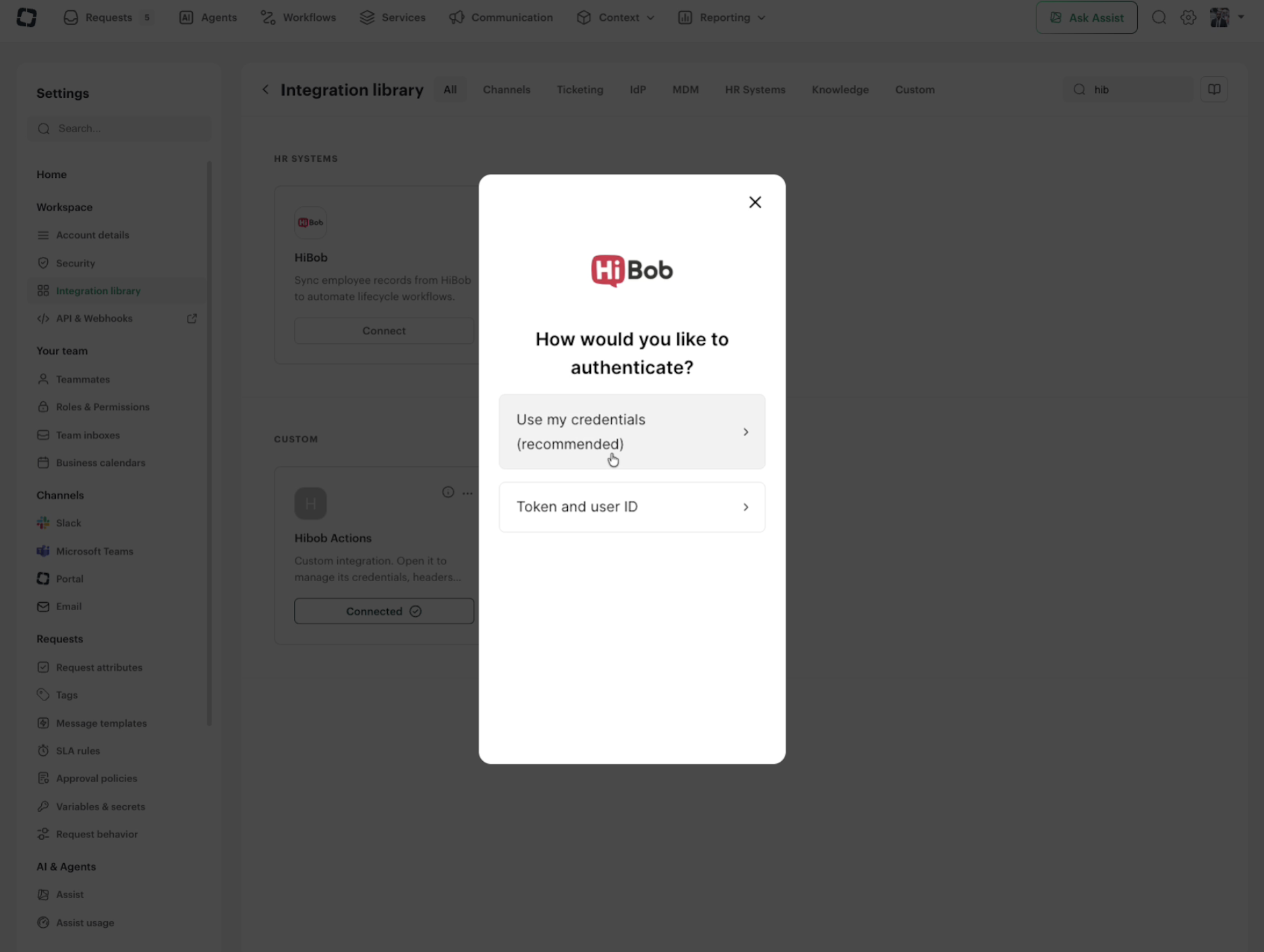
- When asked how you’d like to authenticate, choose Use my credentials (recommended).
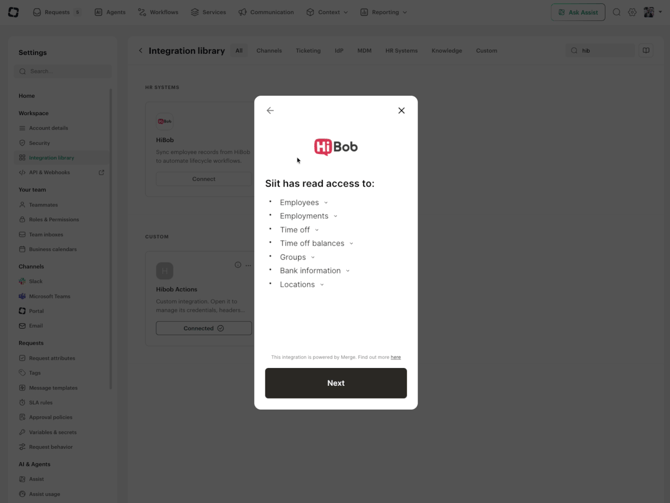
- Check the list of data Siit will have read access to, then click Next.
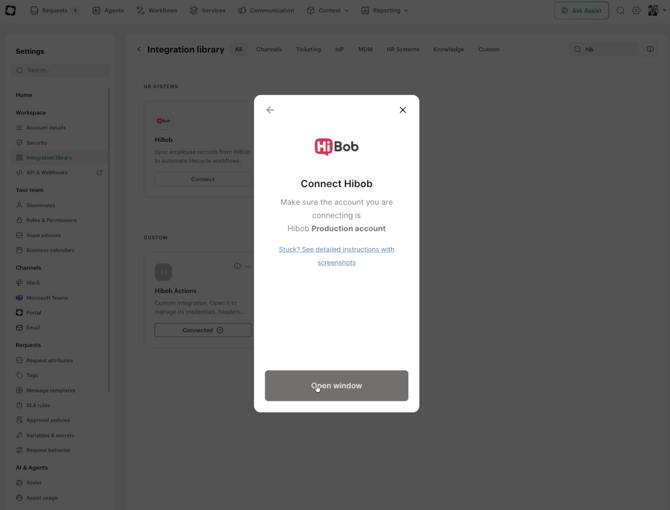
- On the Connect Hibob screen, make sure you’re connecting your HiBob production account, then click Open window.
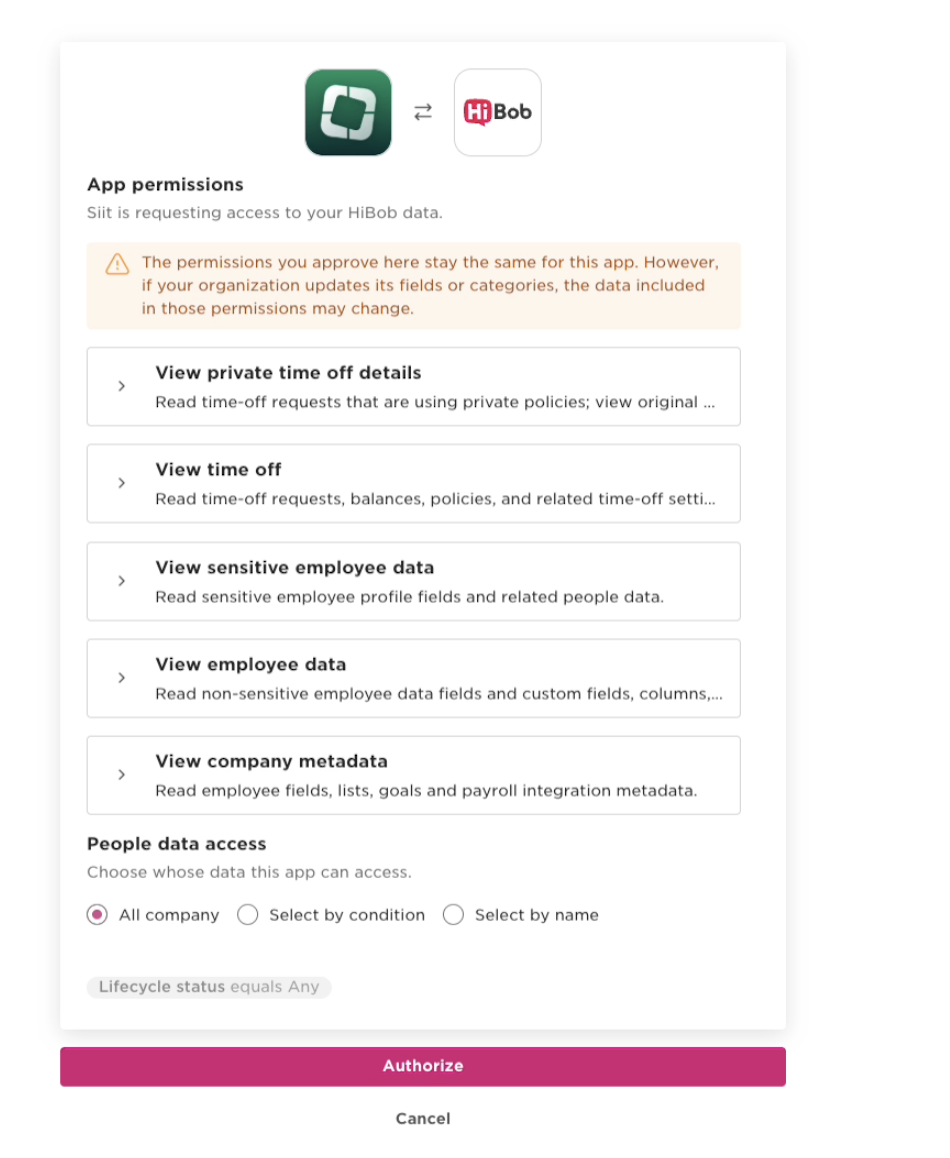
- HiBob opens in a new window. Sign in if needed, choose whose data Siit can access under People data access, then click Authorize.
- Back in Siit, wait a moment while your account is set up.
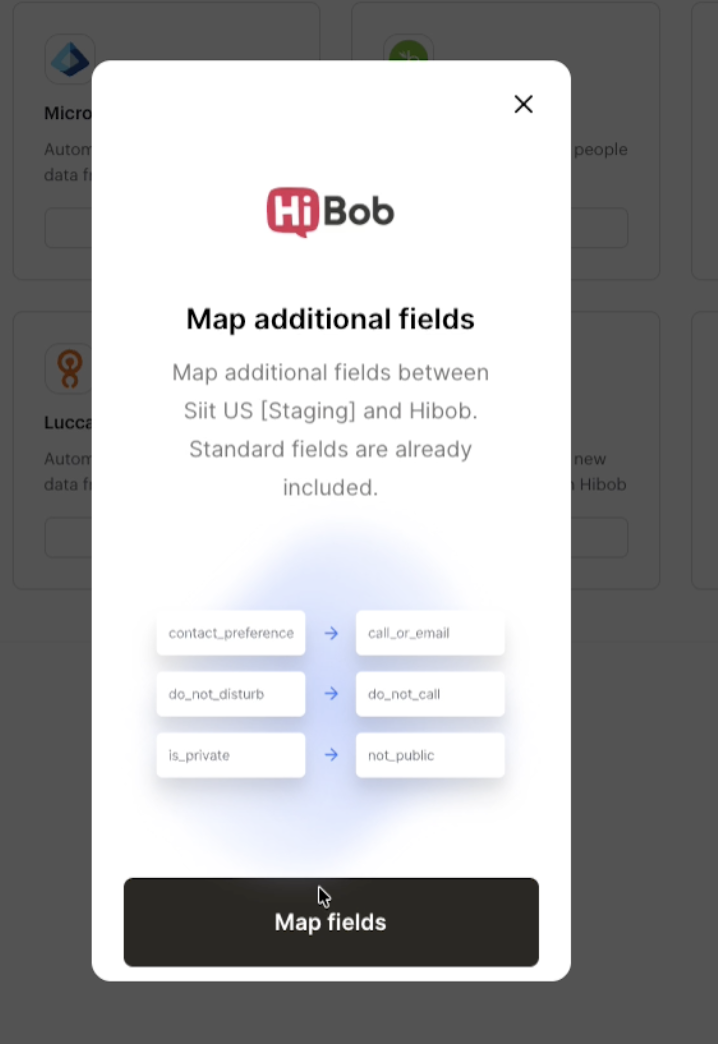
- To sync custom HiBob fields, click Map fields. Standard fields are already included.
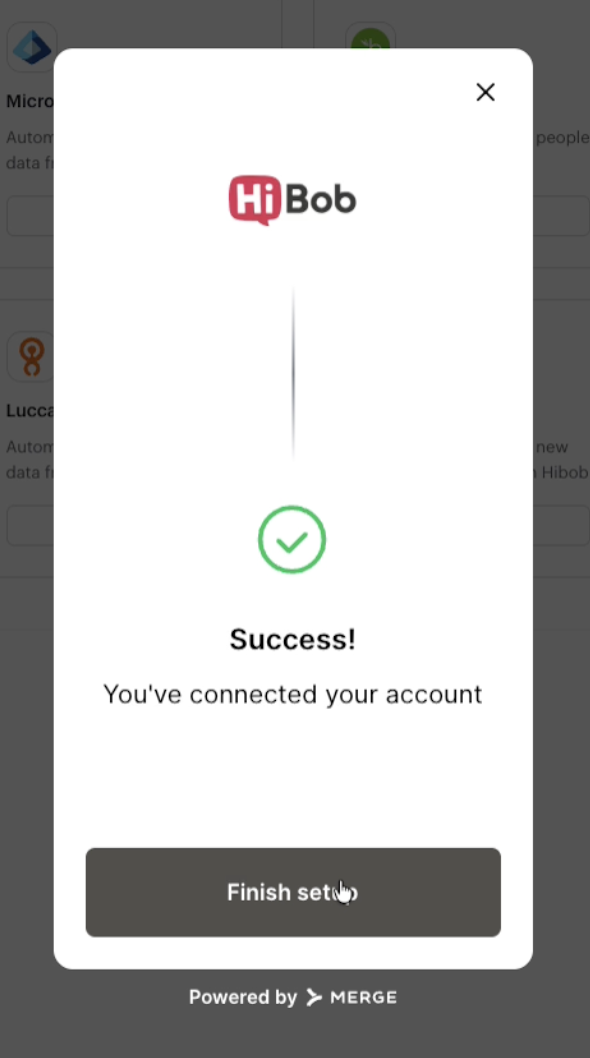
- Click Finish setup.
What data can Siit read in HiBob?
Siit gets read access to employees, employments, time off, time off balances, groups, bank information and locations. Siit only reads data from HiBob and never edits anything in Bob.
Nothing happens when I click Open window. Why?
Your browser is probably blocking pop-ups. Allow pop-ups for Siit and click Open window again.
Some employees are missing in Siit. What can I check?
Make sure the employee has a work email in HiBob and is active or has an upcoming start date. If they still don’t show up, reconnect HiBob from the Integration library or contact our support team.