
Prerequisites
- A Google Workspace account with admin access to authorize the connection.
- Siit admin access to configure integrations.
Available actions
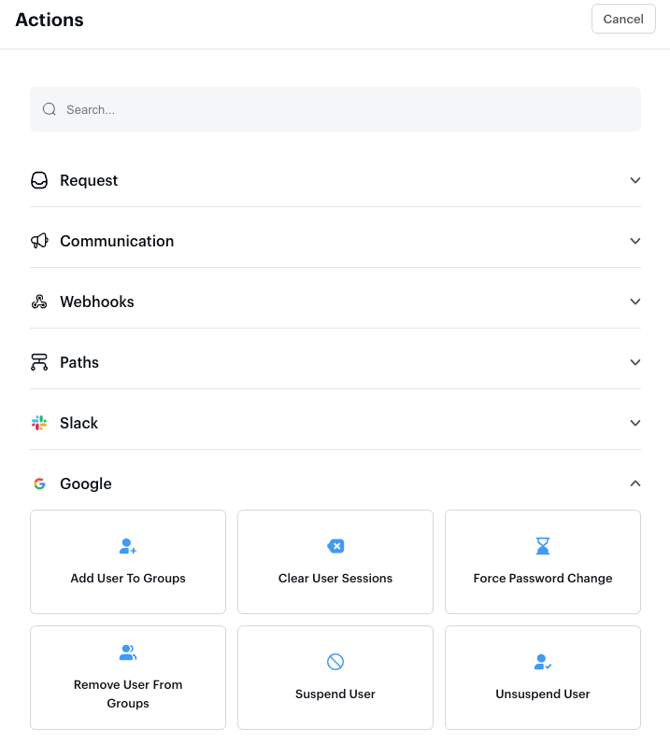
- Add Users to groups
- Remove Users from groups
- Force password change
- Suspend / unsuspend user
- Clear user sessions
- Open Google profile
Step 1 — Connect Google Admin
- Go to Settings → Integration library.
- Find Google Admin and click Connect.
- Sign in with your Google Workspace admin account when prompted.
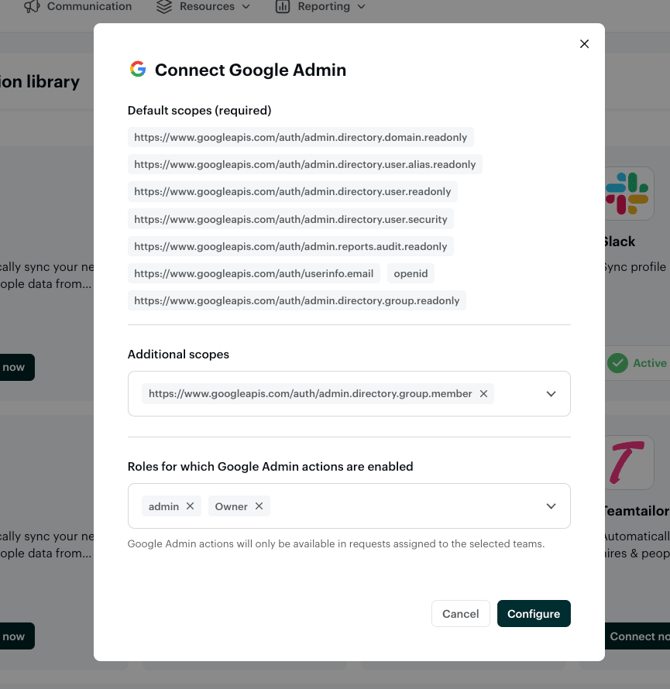
Siit opens a configuration modal with three sections
Step 2 — Review default scopes
Siit requests a set of read-only scopes by default. These are required for directory sync and cannot be removed:
admin.directory.domain.readonlyadmin.directory.user.alias.readonlyadmin.directory.user.readonlyadmin.directory.user.securityadmin.reports.audit.readonlyuserinfo.email·openidadmin.directory.group.readonly
These scopes let Siit read your directory (users, groups, domains) and sync employee profiles. They do not grant write access.
Step 3 — Add the group management scope
To enable Google Workspace Actions (add/remove users from groups), you need to add one additional scope:
https://www.googleapis.com/auth/admin.directory.group.member
In the Additional scopes dropdown, select admin.directory.group.member and confirm.
Without this scope, Siit can read your groups but cannot modify memberships. Add it only if you plan to use group actions from requests, workflows, or AI agents.
Step 4 — Choose which roles can execute actions
In the Roles for which Google Admin actions are enabled field, select the Siit roles that should be allowed to run Google Workspace actions (e.g., admin, Owner).
Google Admin actions will only be available in requests assigned to the selected teams. Users with roles that are not selected will not see or be able to execute these actions.
Step 5 — Confirm
Click Configure to save. Siit authorizes the connection with Google and the actions become available immediately in:
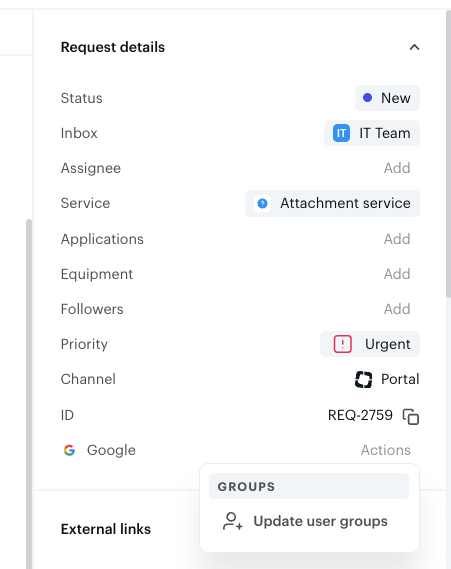
- The request side panel (manual execution)
- The workflow action picker under Third-party applications → Google Workspace
- The AI agent action library
Can I connect without the group management scope?
Yes. If you only need directory sync (employee profiles, group membership visibility), skip the additional scope. Siit will sync your directory but group actions will not be available. You can add the scope later by reconfiguring the integration.
How do I add a user to a Google Group from a request?
- Open the request in the admin console.
- In the side panel, locate the Google Workspace section.
- Click Add to Google Group.
- Search for and select the target group.
- Confirm the action.
The action executes immediately and is logged in the request timeline.
How do I use Google Workspace Actions in a workflow?
Example: auto-provision group access on onboarding
- Go to Workflows and create or edit a workflow.
- Choose your trigger (e.g., People trigger → Start date).
- Add conditions if needed (e.g., Department = Marketing).
- Add an action → Google Workspace → Add user to Google Group.
- Select the group (e.g.,
marketing-team@yourcompany.com). - Save and publish the workflow.
Example: remove all group access on offboarding
- Trigger: People trigger → End date.
- Action: Google Workspace → Remove user from Google Group.
- Repeat for each group, or combine with a branching path to handle department-specific groups.
How do I use Google Workspace Actions with AI agents?
In your agent playbook, reference the actions inline:
Step 1: Confirm which Google Group the employee needs access to
Step 2: /google add to group (Approval required)
Step 3: Notify the requester that access has been granted
You can gate the action with an approval step. The agent will request approval in Slack or Teams and continue once it is granted.
Troubleshooting
I don't see Google Workspace actions in the side panel Verify that Google Workspace is connected in Settings → Workspace → Integration library and that your admin role has permission to execute these actions.
The action failed with a permissions error Check that the Siit service account has the required Google Admin scopes. Re-authorize the integration if scopes were updated recently.
I can't find a specific Google Group Groups must exist in your Google Workspace directory. Siit pulls the group list from Google; if a group was just created, allow a few minutes for sync.
The workflow action didn't trigger Confirm that the trigger conditions match. Check the workflow run log for details.