
What you get:
-
Automatic user provisioning – new employees get Siit access as soon as they're added to your directory
-
Real-time attribute sync – job titles, phone numbers, and languages stay current
-
Group-to-role mapping – assign Siit permissions based on your existing IdP groups
-
Instant deprovisioning – suspended or deleted accounts lose access immediately
Okta SCIM ensures your team's access stays perfectly in sync with your organization's directory, reducing security risks and IT overhead.
Before you begin:
- Your Siit workspace must be on the Pro plan
- You need Okta admin permissions
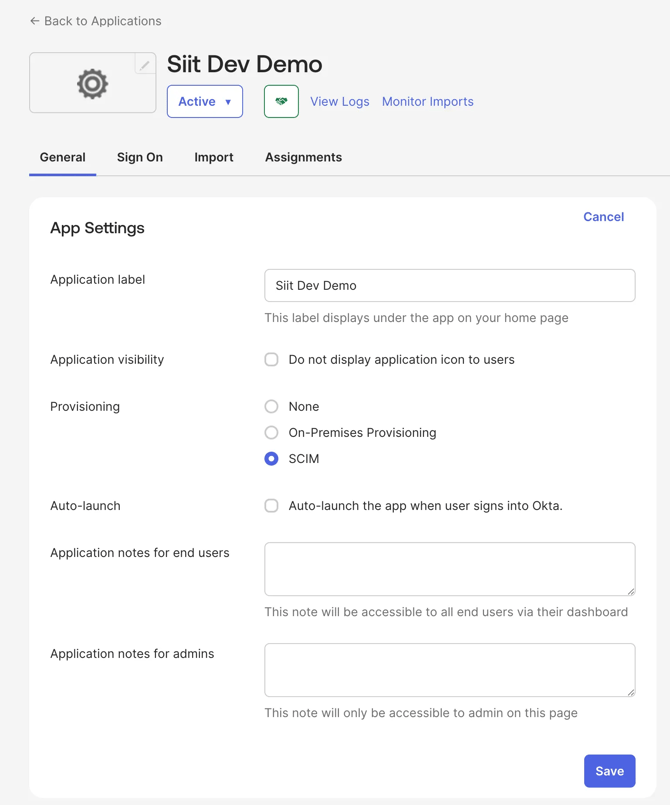
Step 1: Enable SCIM in Okta
- Log into Okta Admin Console
- Go to Applications → Applications
- Find and open your Siit application
- Check the box for Provisioning > SCIM
Step 2: Get your SCIM credentials from Siit
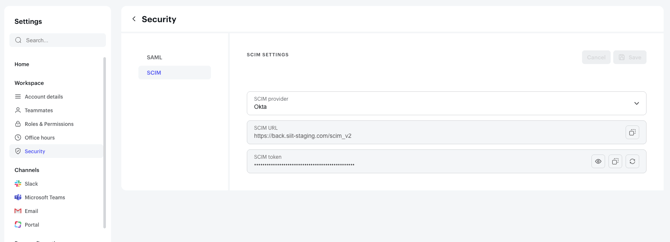
- In Siit, go to Settings → Security → SCIM
- You'll see two values:
- SCIM Base URL (e.g.,
https://back.siit.io/scim_v2) - API Token (a long string starting with
siit_)
- SCIM Base URL (e.g.,
- Keep this page open—you'll need these values in the next step
Step 3: Connect Okta to Siit
- Back in Okta, paste the SCIM Base URL into the Base URL field
- Paste the API Token into the API Token field
- Click Test API Credentials
- If successful, you'll see "The app was verified successfully"
- Click Save
Step 4: Configure provisioning actions
- Stay in the Provisioning tab and click To integration in the left sidebar
- Click Edit next to Provisioning to App
- Enable these three options:
- ✅ Import New users and profile updates
- ✅ Push new users
- ✅ Push profile updates
- ✅ Push Groups
- ✅ Import groups
- Click Save

Step 5: Verify attribute mapping
Configure Mapping Settings and keep the default mapping
Enable these three options:
- ✅ Create Users – Creates Siit accounts when users are assigned
- ✅ Update User Attributes – Syncs changes from Okta to Siit
- ✅ Deactivate Users – Removes Siit access when unassigned

- In the To App section, click Attribute Mappings
- Confirm these fields are mapped (default configuration):
- userName → userName
- email → email
- title → title
- primaryPhone → primaryPhone
- preferredLanguage → preferredLanguage
- Click Save if you made any changes
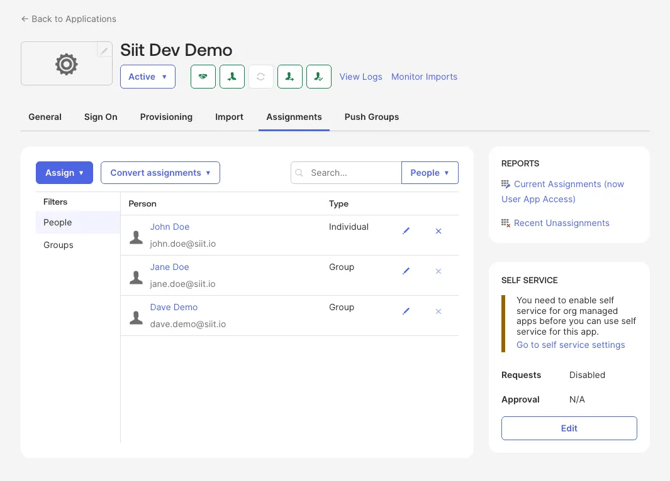
Step 6: Assign users
- Go to the Assignments tab
- Click Assign → Assign to People or Assign to Groups
- Select the users or groups you want to give Siit access
- Click Assign then Done
Users will be automatically created in Siit within a few minutes.
Step 7: Map Okta groups to Siit roles (optional but recommended)
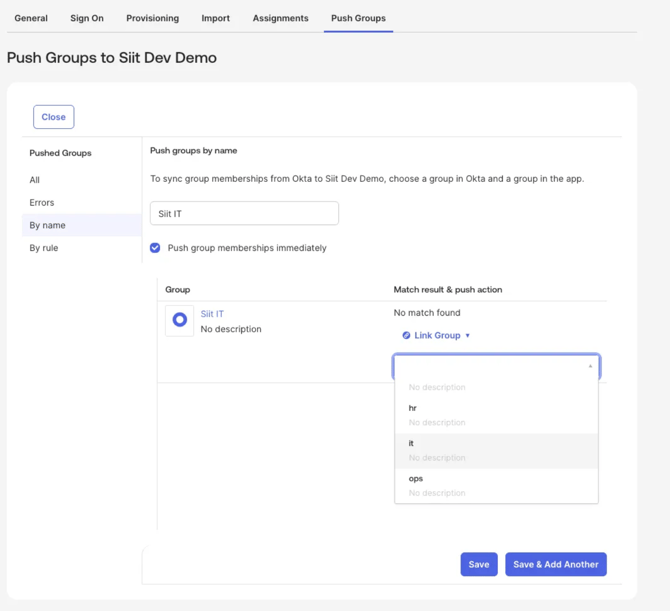
This step lets you control Siit permissions using your existing Okta groups.
- Go to the Push Groups tab
- Click Push Groups → Find groups by name
- Search for and select an Okta group (e.g., "IT Team" or "Support Agents")
- Choose one of these options:
- Link to existing Siit role – Connect this group to a role you've already created in Siit Settings → Roles
- Create role in Siit – Let Okta automatically create a new role in Siit
- Click Save
Repeat for each group you want to map to Siit roles.
What happens next:
- Anyone added to the Okta group will automatically get the mapped Siit role
- Removing someone from the group removes their Siit role
- Changes sync within minutes