
What this guide helps you achieve
- Add an App access field to any service form
- Control which apps employees are allowed to pick (e.g. only Approved apps)
- Decide whether picking a Role is required, so the request triggers your App Access approval flow instead of landing as a plain ticket
- Mark the field Mandatory
Where to find it
Service Catalog → [Service] → Form → App access question
Steps
- Go to Service Catalog and open the service you want to edit.
- Open the Form tab and add (or select) the App access question.
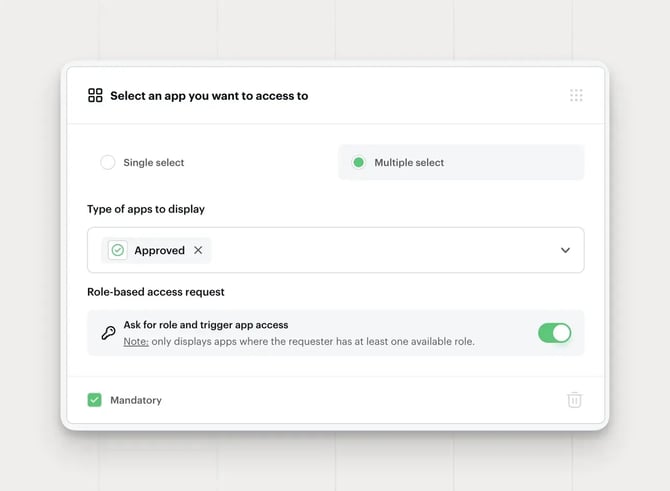
- Choose Single select if the employee should request one app at a time, or Multiple select to let them request several apps in the same submission.
- Under Type of apps to display, pick which apps are eligible to appear in the picker, for example, restrict it to Approved apps only so employees can't request apps that aren't ready for general use.
- Under Role-based access request, turn on Ask for role and trigger app access if you want the employee to also pick a Role for the app they're requesting.
- Note: this only shows apps for which the requester has at least one available Role. If an app has no Roles configured, it won't show up here, the request needs to go through Roles to trigger the automated App Access flow.
- Toggle Mandatory on if the question must be answered before the form can be submitted.
- Save the form and submit a test request to confirm the picker and (if enabled) the Role step behave as expected.
Common pitfalls
- Role toggle on, but no Roles configured on the app — the picker won't offer a Role, and the request falls back to the app's Default role (manual app owner ping) instead of automated routing.
- "Type of apps to display" set too narrow, if you restrict to Approved only, make sure the apps you expect employees to request are actually marked Approved in Data Management → Apps, or they won't show up at all.
Best practices
- Keep the app list scoped (e.g. Approved only) so employees aren't offered apps that are deprecated, under security review, or not yet supported.
- Only turn on Ask for role and trigger app access for apps where you've actually set up Roles and an Approval Policy, otherwise the toggle adds a step without an automated payoff.
- Put the App access field early in the form so agents see the requested app(s) immediately when triaging.
Availability
Pro plan.