
When switching to Siit, you can bring your historical tickets with you — conversations, notes, and all. This article explains how to use the Import past Requests endpoint to migrate closed tickets from any existing system (Zendesk, Jira, Freshservice, ServiceNow, etc.).
Before you start
- Full API reference: developer.siit.io/api-reference/request/import-past-requests
What the import does:
- Creates requests in Siit with a resolved status
- Preserves original creation and resolution dates
- Imports the full message thread (public replies and internal notes)
- Auto-creates any users that don't yet exist in Siit based on their email address
What it doesn't do:
- Trigger workflows or send notifications (even if you later reopen an imported request)
- Import users, HR data, or assets — configure these using Siit's native integrations instead
Step 1 — Get your API key
Go to Settings → Personal → Authentication in your Siit dashboard and generate an API key. You need to be an Owner or an Admin with "Public API" permissions.
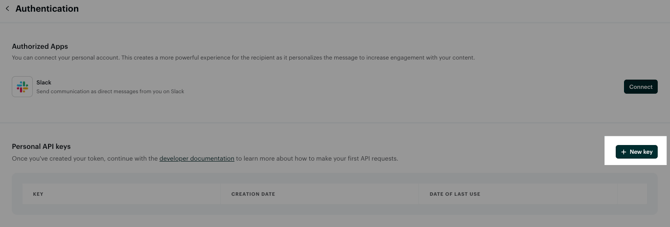
To confirm it's working:
curl https://api.siit.io/ping \
  -H "Authorization: Bearer YOUR_API_KEY"
# Expected response: {"result":"pong"}
Step 2 — Export your tickets from your current system
Before calling the Siit API, export your closed/resolved tickets from your existing tool. For each ticket, you'll want to collect:
- Subject / title
- Description
- Requester email
- Creation date and resolution date
- Service request
- Comments or replies (with author email, date, and whether they were internal notes)
Most tools let you do this via their own API or a CSV export. The exact steps depend on your platform — refer to your current tool's documentation if needed.
Step 3 — Call the import endpoint
Send your tickets to Siit in batches of up to 200 per request.
POST https://api.siit.io/v1/requests/batch_import
Authorization: Bearer YOUR_API_KEY
Content-Type: application/json
Request fields
| Field | Required | Description |
|---|---|---|
title |
Yes | The ticket subject or title |
requested_by |
Yes | Requester's email address or Siit UID |
description |
No | The ticket body / description |
priority |
No | low, medium, high, or urgent |
created_at |
No | Original creation date — preserves history |
completed_at |
No | Resolution date |
assignee_admin |
No | Assigned agent's email or Siit UID |
target_uid |
No | UID of a service from your Siit catalog |
custom_form_inputs |
No | Any extra metadata you want to carry over (see below) |
messages |
No | The conversation thread (see below) |
Message fields
Each entry in the messages array represents one reply or note:
| Field | Required | Description |
|---|---|---|
body_text |
Yes | The message content |
kind |
Yes | "message" for a public reply, "note" for an internal note |
sent_by |
Yes | Author's email address or Siit UID |
created_at |
No | Original timestamp of the message |
Note on users: You can use email addresses directly in
requested_by,assignee_admin, andsent_by. If an email doesn't match an existing Siit user, Siit will auto-create the account. No need to pre-create users before importing.
Step 4 — Send a test request first
Before importing everything, send 1 or 2 tickets to check that your payload is correctly formatted and that dates, emails, and special characters come through as expected.
Here's a complete example payload:
{
  "items": [
    {
      "title": "VPN not working from home",
      "description": "Employee reports being unable to connect to the VPN since this morning.",
      "requested_by": "jane.doe@company.com",
      "priority": "high",
      "created_at": "2025-11-03 09:14",
      "completed_at": "2025-11-03 14:30",
      "custom_form_inputs": [
        {
          "label": "Source System",
          "value": "Zendesk"
        },
        {
          "label": "Original Ticket ID",
          "value": "ZD-10482"
        }
      ],
      "messages": [
        {
          "body_text": "Hi, I can't connect to the VPN since this morning. It times out every time.",
          "kind": "message",
          "sent_by": "jane.doe@company.com",
          "created_at": "2025-11-03 09:14"
        },
        {
          "body_text": "Checked the VPN logs — her account had been locked after failed MFA attempts. Unlocking now.",
          "kind": "note",
          "sent_by": "it.admin@company.com",
          "created_at": "2025-11-03 10:02"
        },
        {
          "body_text": "Your account has been unlocked. Please try connecting again and let us know if it works.",
          "kind": "message",
          "sent_by": "it.admin@company.com",
          "created_at": "2025-11-03 10:05"
        }
      ]
    }
  ]
}
A successful import returns an HTTP 201 with the created request objects. If anything is wrong, you'll get a 400 — fix the issue and retry.
⚠️ Important: If any item in a batch fails validation, the entire batch is rejected. Nothing is imported. Always validate your data — especially date formats — before sending large batches.
Step 5 — Run the full import
Once your test looks good, loop through all your exported tickets in batches of 200. Here's the logic in plain terms:
For every 200 tickets:
  Build a payload with those tickets
  POST to /v1/requests/batch_import
  If the response is not 201 → log the error and investigate before retrying
  Wait a moment before the next batch (to avoid hitting rate limits)
We recommend adding a short delay (0.5–1 second) between batches.
Tips
Store the original ticket ID. Use custom_form_inputs to save the source system's ticket ID on every imported request. This makes it easy to cross-reference if a question comes up later.
Validate dates before sending. A single malformed timestamp will abort the entire batch. Make sure all dates follow the YYYY-MM-DD HH:MM or ISO 8601 format.
Check your encoding. If your tickets contain special characters (accents, emoji, non-latin scripts), make sure your data is UTF-8 encoded before sending.
Import during off-hours. For large migrations (thousands of tickets), running the import outside business hours avoids any slowdown for active users.
After the import
Once the migration is done:
- Go to Requests in the Siit Admin Dashboard and filter by status Resolved to see imported tickets
- Spot-check 10–15 requests to confirm titles, descriptions, dates, and conversation history are correct
- Set up Siit's native integrations for users (Slack / Teams), HR data (HRIS), and assets
- Configure your service catalog, workflows, and notifications
- Communicate the switch to your team
Need help?
- Contact your Siit point of contact — share the error response from the API for faster diagnosis