
Part 1: Configure Iru API Token
- Log in to your Iru dashboard.
- Go to Settings → Access.
.png?width=670&height=321&name=image%20(12).png)
- Next to Admin and authentication, click on API tokens

- Enter a name for the new token (e.g., “Siit”) and click “Create”.
.png?width=670&height=312&name=image%20(13).png)
- Copy the API Token and save it somewhere safe.
- Click “Next”.
- In the Manage Permissions modal, click “Skip”.
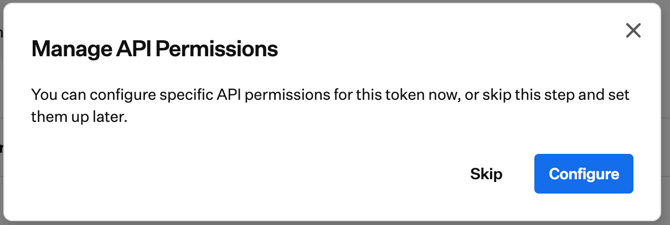
- Copy the Organization’s API URL (you’ll need it later).
- Click the three dots (•••) → View → Configure Permissions.
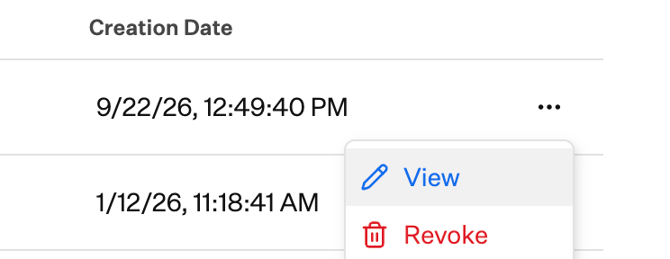
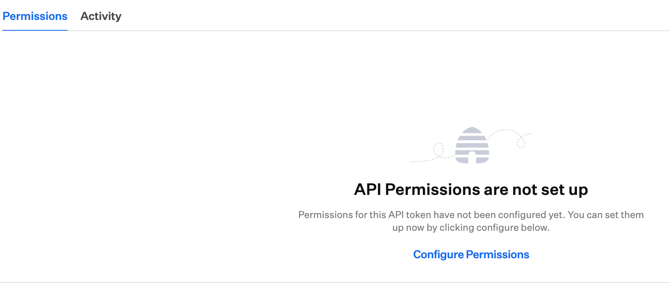
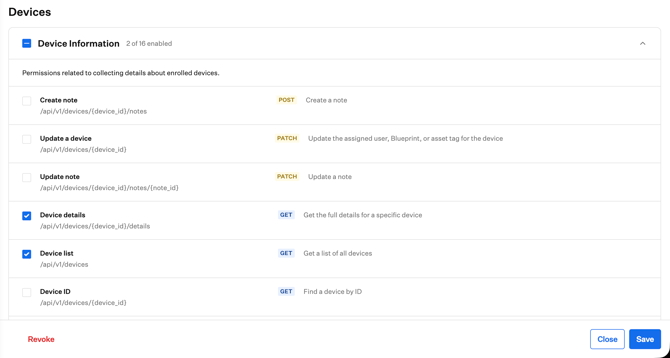
- Enable the following permissions for Siit:
- Device list (required)
- Device details (required)
- Clear device passcode
- Lock device
- Erase device
- Restart device
- Shutdown device
- Account unlock
- Click “Save”.
Part 2: Enable Iru Integration in Siit
-
Log in to your Siit Admin Dashboard: https://app.siit.io
-
Click the Settings (⚙️) icon in the top-right corner.
-
Find the Iru integration and click “Connect Now”.
-
Enter the API URL and API Token you copied earlier.
-
Click “Configure”.
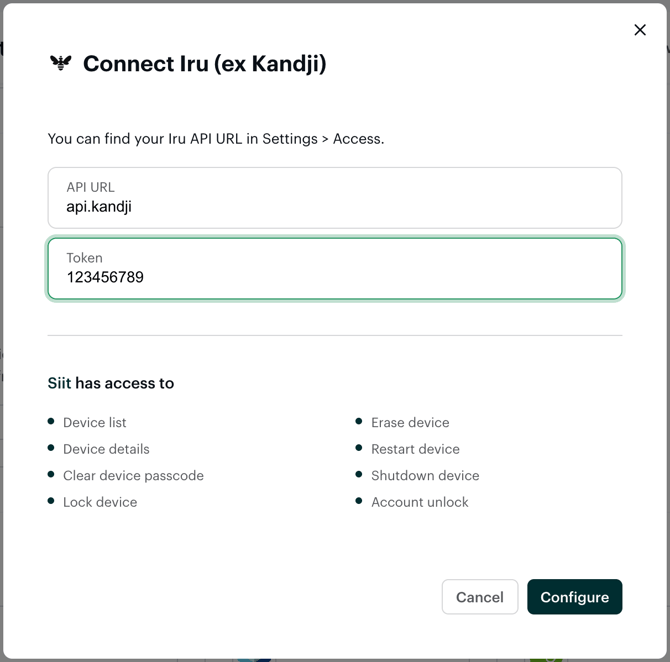
🎉 Done! Your Iru integration is now active in Siit, and your devices will sync automatically.
What you'll see synced automatically
- Office location: Siit now maps each device's office location straight from Iru, instead of leaving it blank for you to fill in by hand.
- Status follows the owner: if you assign an owner to a device marked "Spare," Siit switches it to "In service" for you, unless you changed the status yourself in that same edit.
ℹ️ This applies automatically once your integration is connected, no extra setup needed.