
Is this about you?
This article is for workspaces still running the first version of our AI agent, the one that suggests a knowledge article and recommends a service when an employee posts in Slack or Teams.
You are affected if either of these is true:
- In Settings → Agents, you have an agent card labelled Chat Bot AI and it is active
- Employees post in a monitored channel and get an article suggestion plus a link to a service form, rather than a full back-and-forth conversation that fills in the form fields
If you are already running the Triage Agent on all your channels, nothing changes for you and you can stop here.
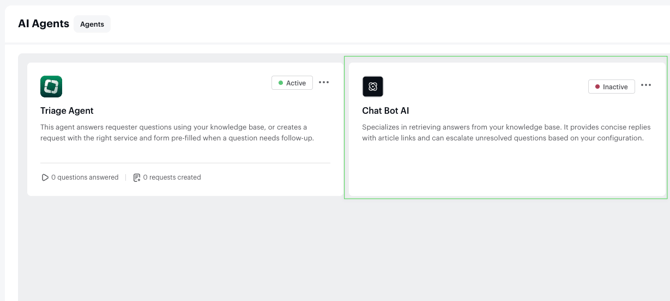
What is changing
On 30 September 2026, the first version of our AI agent is sunset. Every workspace still using it is moved automatically to the Triage Agent.
You do not need to rebuild anything. The Triage Agent runs on the setup you already have: your published Knowledge Base articles, your live services, your service forms, and your user data.
⚠️ Nothing breaks on 30 September. Employees keep messaging the same Slack and Teams channels. Your knowledge sources stay connected. Your services and forms stay exactly as they are.
Why we are doing it
The first version stopped at suggestions. When it created a request, it passed along a title, a description, and a service. Custom form fields arrived empty, automations did not fire, and admins chased missing context afterwards.
The Triage Agent closes that gap. It collects every required field conversationally before the request is created, so your workflows, automations, and SLAs work from the first message.
What you need to do
Nothing is required. The move is automatic ✨.
That said, three checks will make a real difference to accuracy. Do them before 30 September.
1. Review your service About fields
Service descriptions are the main signal the Triage Agent uses to match a request to the right service. The first version did lighter matching, so vague descriptions were less costly. Now they matter.
Go to Settings → Service Catalog, open each live service, and make sure the About field describes what the service is for in plain language, including the kinds of requests it covers. For example: "Use this service for VPN access issues, remote connectivity problems, or network login failures."
Avoid internal jargon or abbreviations an employee would not use when describing their problem.
2. Check your service forms
The Triage Agent collects and validates every required field. Forms with 3 to 6 distinct, clearly labelled fields perform best. Long forms with overlapping or ambiguous fields slow the conversation down and produce weaker matches. Multi-select options should describe distinct scenarios, not synonyms.
3. Clean up your Knowledge Base
The agent surfaces what you publish, including stale content. Out-of-date or duplicated articles weaken deflection quality. Archive what is no longer accurate.
What maps to what
| Chat Bot AI | Triage Agent |
|---|---|
| Suggested articles from Notion and Confluence | Conversational knowledge deflection, using the same connected sources. The employee can accept or decline in plain language instead of clicking a button. |
| Recommended a Service Catalog item | Intelligent service matching, plus conversational collection of every required form field |
| Created requests with title, description, and service only | Creates requests with form fields filled, priority set, and tags applied |
| Enabled per team or channel | Enabled per channel from Settings → Agents |
| Conversation stayed in Slack or Teams | Full AI conversation is attached to the request timeline in Siit |
| No equivalent | Request on behalf, so managers can open requests for their direct reports |
| No equivalent | Stale reminders on abandoned conversations |
| No equivalent | Third-party intervention handling, so the agent pauses when someone else posts in the thread |
After the move
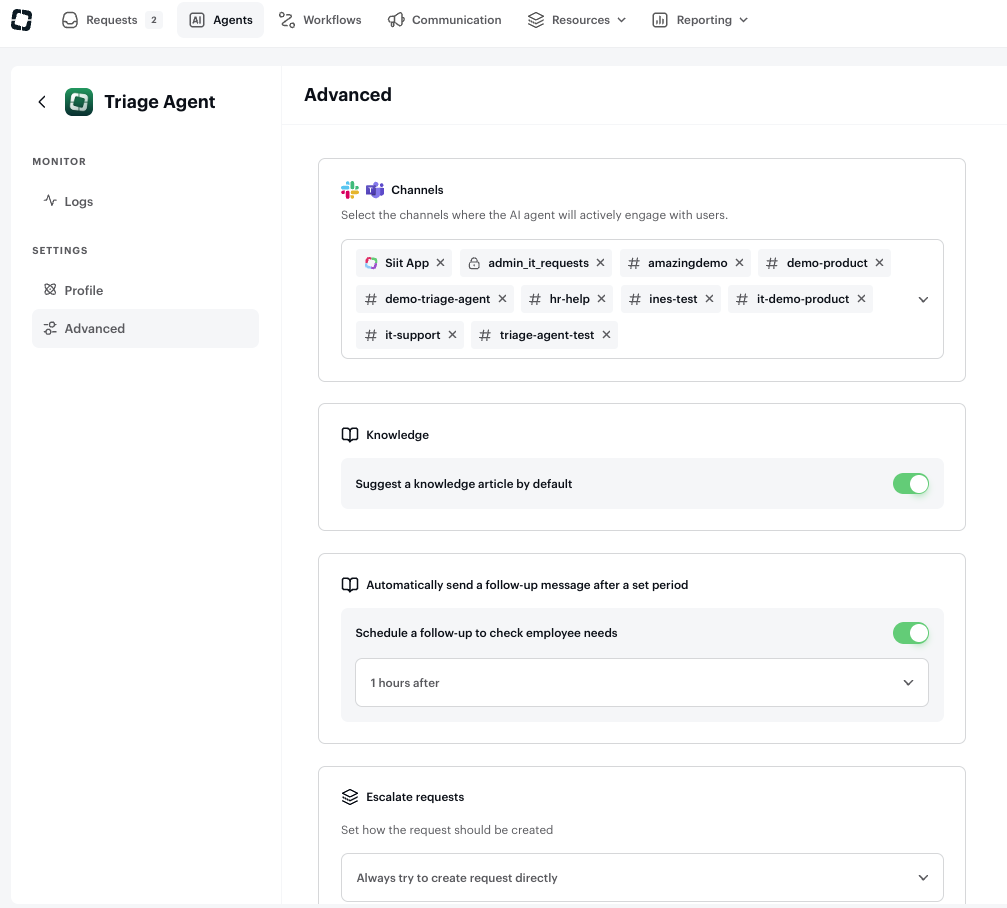
Your Triage Agent settings live in Settings → Agents. Everything has a sensible default, and you can adjust any of it at any time:
- Channels. Which Slack or Teams channels the agent monitors. Channels that were already active are carried over.
- Knowledge behavior. Whether the agent checks the Knowledge Base before moving to intake. On by default.
- Request behavior. "Try to create directly" creates the request without a confirmation step. "Always show pre-filled form" lets the employee review and submit first. If you want the experience closest to what you have today, start with the pre-filled form.
- Stale reminders. How long the agent waits before nudging an abandoned conversation.
Frequently asked questions
Do I need to turn the Triage Agent on myself? No. If the first version is active in your workspace, we activate the Triage Agent on the same channels for you.
Will my employees notice anything? The entry point is identical: they message the same channel in plain language. The conversation is richer, because the agent asks for the information your forms require instead of handing off an incomplete request. No training is needed, though a short heads-up in your IT channel is never a bad idea.
Do I need to reconnect Notion or Confluence? No. Your knowledge sources stay connected and the Triage Agent reads the same published articles.
What happens to requests already created? Nothing. Existing requests, their history, and their reporting are untouched.
Can I test the Triage Agent before 30 September? Yes, and we recommend it. Turn it on for one channel from Settings → Agents and run a few real requests through it. You can compare side by side, since the first version keeps working on your other channels until 30 September.
Is the Triage Agent on my plan? The Triage Agent is part of the Pro plan. If you are not on Pro, a 14-day free trial is available so you can test it in your own environment.
What if service matching gets something wrong? It is almost always the service description. Open the service, expand the About field to cover the request types employees actually describe, and retest. Matching accuracy tracks description quality closely.
Need more detail
The full Triage Agent guide covers every feature and configuration option: Triage Agent — Guide