- Automatic admin & agent provisioning: new admins and agents get Siit access as soon as they're added to your Okta directory
-
Real-time attribute sync – job titles, phone numbers, and languages stay current
-
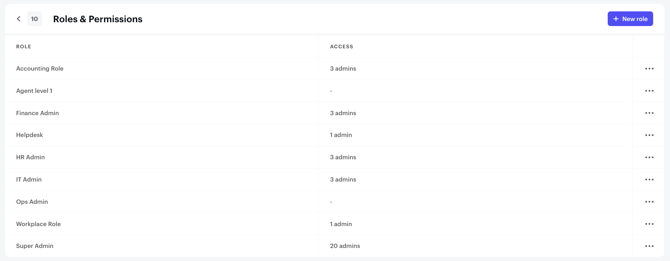
Group-to-role mapping – assign Siit permissions based on your existing IdP groups
-
Instant deprovisioning – suspended or deleted accounts lose access immediately
Okta SCIM ensures your team's access stays perfectly in sync with your organization's directory, reducing security risks and IT overhead.
Supported SCIM Features
- Push New Users – Create users in Siit when assigned in Okta
- Push Profile Updates – Update user attributes in Siit when changed in Okta
- Push Groups – Push Okta groups to Siit and link them to Siit roles
- Deactivate Users – Deactivate users in Siit when removed or suspended in Okta
What SCIM covers (and what it doesn't)
SCIM provisions admin and agent accounts only — it does not manage employee (end-user) accounts.
Employees (requesters) are created automatically in Siit when they first interact via Slack, Microsoft Teams, or email, and their profiles are synced via integrations like Okta People, BambooHR, or Personio.
You do not need to assign all your employees to the Siit Okta app. Only assign users who should have access to the Siit admin dashboard.
Before you begin:
- Your Siit workspace must be on the Pro plan
- You need Okta admin permissions
- Install the Siit Application from Okta Marketplace
- Go to the SCIM security config in Siit
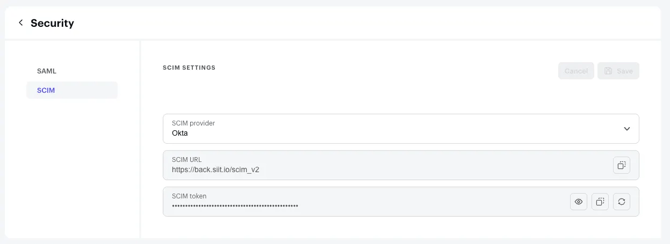
- Use the token found there to fill the API key in the provisioning tab in Okta
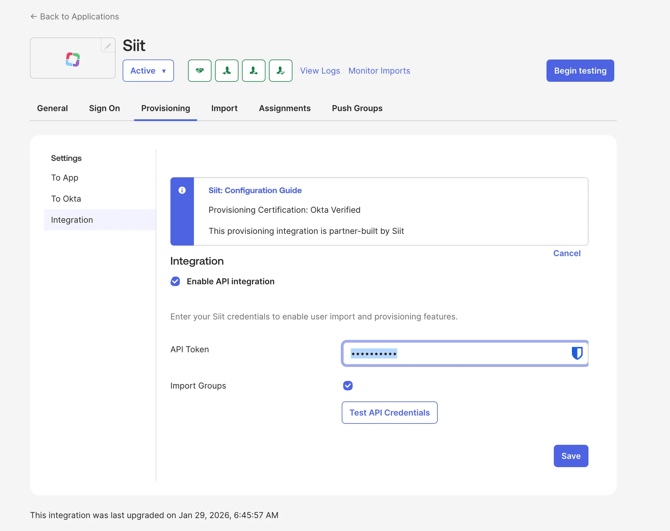
💡 Default Role field While in the provisioning tab in Okta, you'll see a Default Role field. This is the Siit role assigned to any SCIM-provisioned user who is not explicitly mapped via Push Groups (step 5).
Set this to your most restrictive agent role (e.g. IT Agent) to avoid unintentionally granting elevated permissions. Leaving it empty may cause provisioning errors.
4. Assign users
5. Push and link groups
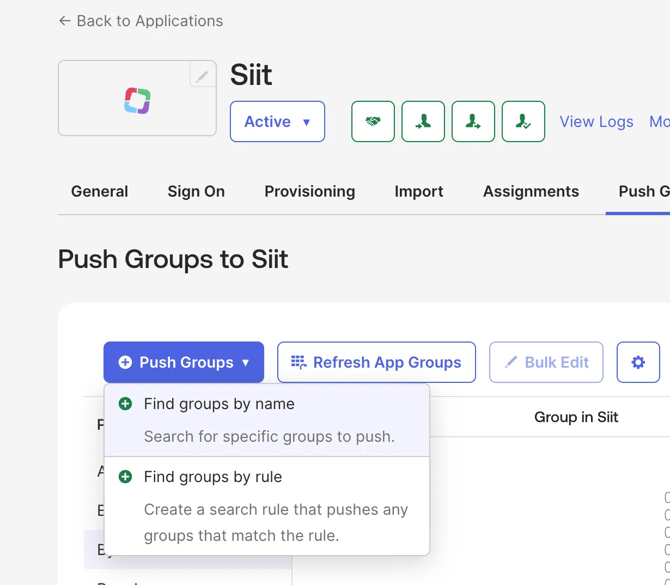
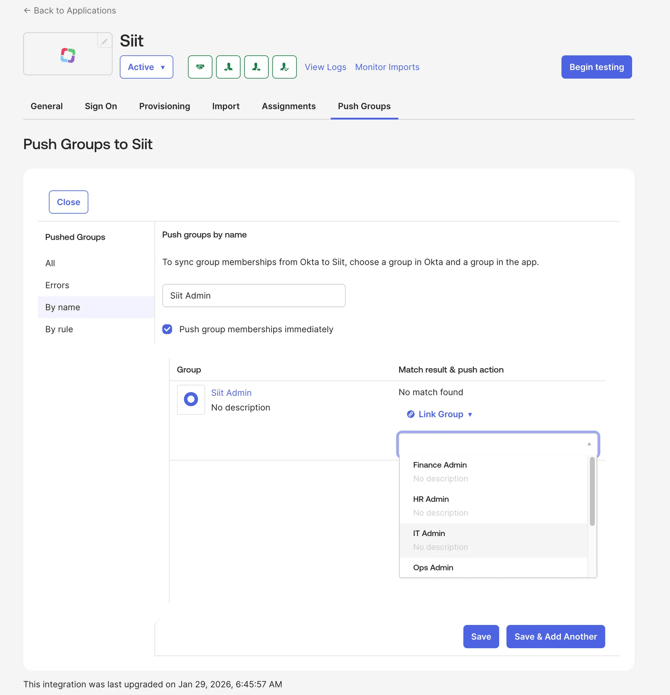
- Make sure to refresh groups to see existing Siit Roles
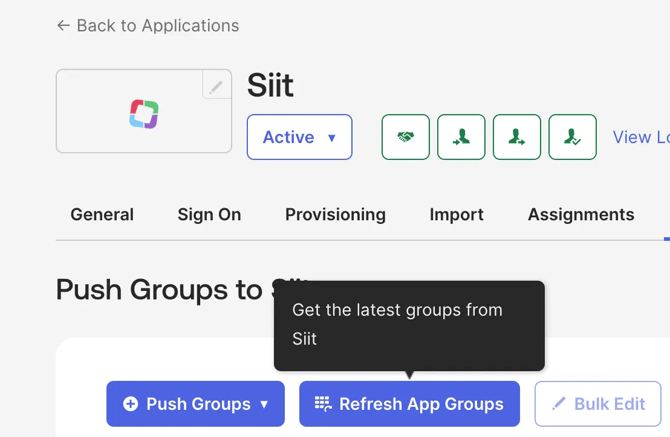
- Go to push groups and choose find by name
- Link your okta group to an existing siit role
- Or create role in Siit based on okta group
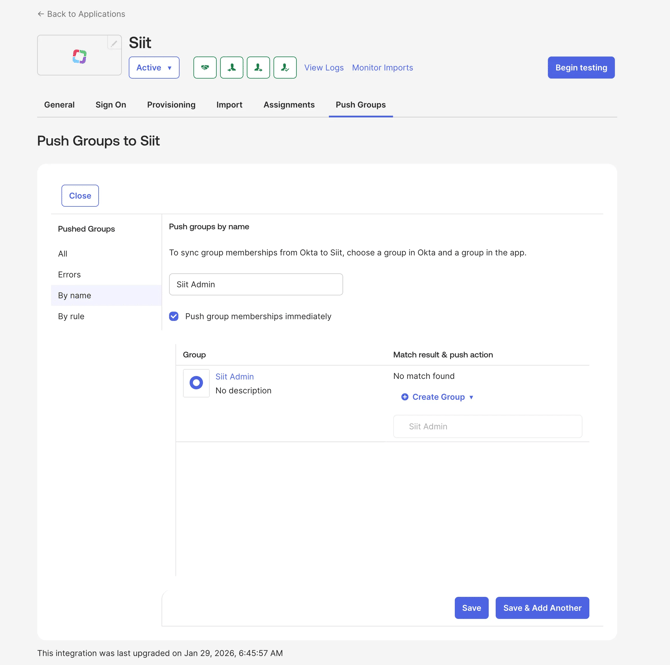
Roles are now imported and synchronized in Siit