
Related article: Set up SAML SSO with Okta (Admin console SSO)
Tags: Okta, SAML, SSO, Employee Portal, portal settings
Overview
Siit has two separate SAML configurations — one for the admin console, one for the employee portal. They are independent and must each be set up individually.
| Admin Console SSO | Employee Portal SSO | |
|---|---|---|
| Who it covers | Agents & admins logging into app.siit.io |
Employees logging into yourcompany.siit.io |
| Where to configure in Siit | Settings → Security → SAML | Settings → Portal → SAML |
| Okta app to use | Siit app from Okta Marketplace, or custom SAML app | A separate custom SAML 2.0 app |
| Required to enforce SSO | "Require users to log in using SAML exclusively" toggle in Security settings | Same toggle, but in Portal settings |
⚠️ Common mistake: Configuring only the admin SAML and expecting employees to be covered. If only the admin SAML is set up, employees will still be able to log in with Google/Microsoft — even with "Require SAML" turned on in the admin settings.
Step 1 — Create a new custom SAML app in Okta
The employee portal SAML cannot reuse the same Okta app as the admin console. You need to create a dedicated app.
- In Okta, go to Applications → Applications → Create App Integration
- Select SAML 2.0 and click Next
- Give it a clear name (e.g.
Siit – Employee Portal) - In the SAML Settings, configure:
- Single Sign-On URL: retrieve this from Siit at Settings → Portal → SSO (this is the ACS URL specific to the portal — it is different from the admin one)
- Audience URI (SP Entity ID): also found in Settings → Portal → SSO
- Default Relay State: set this to your employee portal URL →
https://yourcompany.siit.io - Application username format: set to Email
- Complete the setup and go to the Sign On tab to retrieve the SAML metadata (SSO Service URL, Issuer, Public Certificate)
Step 2 — Configure Portal SSO in Siit
- In Siit, go to Settings → Portal → SAML
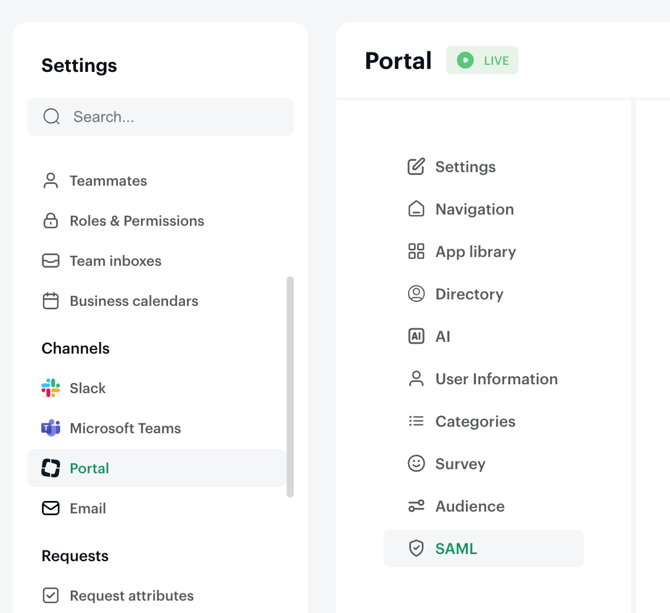
- Fill in the credentials from your Okta app:
- SSO Service URL
- Identity Provider Issuer
- Public Certificate
- Click Save
💡 This setting is separate from Settings → Security → SAML, which controls admin console access only. Make sure you're in the Portal settings, not the Security settings.
Step 3 — Assign users in Okta
In your new Okta portal SAML app, go to Assignments and assign the relevant users or groups — typically all employees in your organization.
Step 4 — Enforce SSO for the portal (optional)
If you want to prevent employees from logging in with Google or Microsoft:
- In Siit, go to Settings → Portal → SSO
- Enable "Require users to log in using SAML exclusively"
⚠️ This toggle only works once a valid Portal SAML config is saved. If you enable it on the admin SAML side (Settings → Security) but not on the portal side, employees will still be able to log in with Google.
How the two SAML configurations interact
Here's the full behavior matrix to avoid surprises:
| General SAML "Require SAML" | Portal SAML configured? | Portal SAML "Require SAML" | Result for employees |
|---|---|---|---|
| ON | No | — | Employees are forced to use SAML (inherits general config) |
| ON | Yes | OFF | Employees are not forced to use SAML |
| ON | Yes | ON | Employees are forced to use SAML |
| OFF | Yes | ON | Employees are forced to use SAML |
| OFF | Yes | OFF | Employees can use Google/Microsoft or SAML |
Key takeaway: once a Portal SAML config exists, it takes precedence over the general config for employees. You need to manage the portal toggle independently.
Default Relay State: what it does and its limitations
Setting the Default Relay State in Okta to https://yourcompany.siit.io is the standard way to ensure employees land on the portal after SSO. However, this has a known limitation:
- If employees navigate directly to
https://yourcompany.siit.ioand click "Sign in with SSO", the relay state works correctly and they land on the portal after authentication. - If employees click on the Okta tile from their Okta dashboard without already being on the portal URL, some environments may still redirect to
app.siit.io.
Recommended workaround if the relay state doesn't behave as expected:
Direct employees to bookmark
https://yourcompany.siit.ioand always start their login from there. The "Sign in with SSO" button on the portal page will correctly redirect to Okta and back to the portal after authentication.
Troubleshooting
Employees are redirected to app.siit.io instead of yourcompany.siit.io → Check that the Single Sign-On URL and Audience URI in your Okta app are sourced from Settings → Portal → SSO, not from Settings → Security → SAML. They are different values.
Employees can still log in with Google after enabling "Require SAML" → The "Require SAML" toggle in Settings → Security does not apply to the portal if a Portal SAML config exists. You need to also enable the toggle in Settings → Portal → SSO.
The portal SAML settings section is not visible in Siit → The Portal SSO feature may need to be enabled by the Siit team for your workspace. Contact support to activate it.
The Okta login button shows "Sign in with SSO" instead of "Sign in with Okta" → This is expected behavior for custom SAML 2.0 apps. The label "Sign in with Okta" appears only when using the official Siit app from the Okta Marketplace (which is configured for admin SSO). For the employee portal custom app, "Sign in with SSO" is the correct display.