
When a Siit request is escalated to Freshservice, the two tickets are linked. With a one-time setup in Freshservice, every new comment on the Freshservice ticket is also posted to the linked Siit request in real time. Your agents keep working in Siit and still see what the Freshservice team replies, without switching tools.
You set this up with a single rule in Freshservice's Workflow Automator that notifies Siit whenever a comment is added.
Before you start
- The Freshservice integration connected in Siit (
Settings → Integrations → Freshservice). - Your Siit webhook details. You need two values from Siit: a Callback URL and a signature key for the comment event. Once your Freshservice integration is connected, contact your Siit account manager to get them.
Step 1 — Create a ticket workflow
- In Freshservice, go to Admin → Workflow Automator.
- Create a new ticket workflow and give it a clear name, for example Send ticket comments to Siit.
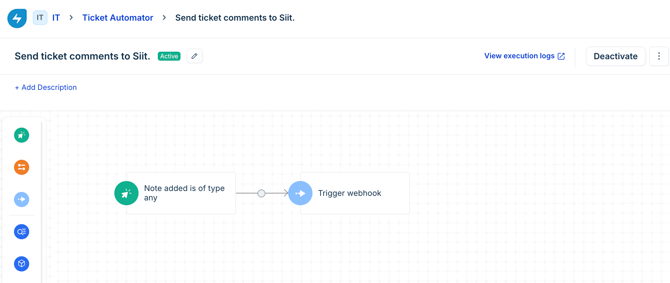
Step 2 — Add the comment trigger
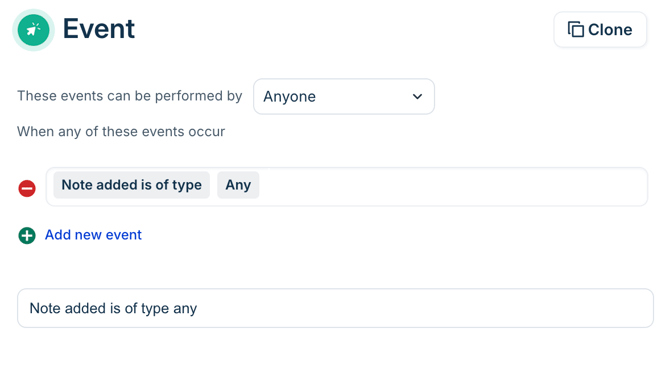
- Add an Event trigger.
- Set These events can be performed by to Anyone.
- Choose the event Note added is of type → Any. This fires whenever a reply or note is added to a ticket.
Step 3 — Add the webhook action
- Add an Action after the event and select Trigger Webhook. Drag it onto the canvas and connect it to the event so it runs when a comment is added.
- Configure the action:
- Perform these actions on: Ticket
- Request type: POST
- Callback URL: paste the Callback URL Siit gave you
- Credentials: Inline Credential
- Authentication type: No Auth
- Turn on Custom headers and add these two:
| Header | Value |
|---|---|
| event | comment_create |
| signature | paste the signature key Siit gave you |
{"ticket_id": "{{ticket.id_numeric}}"} 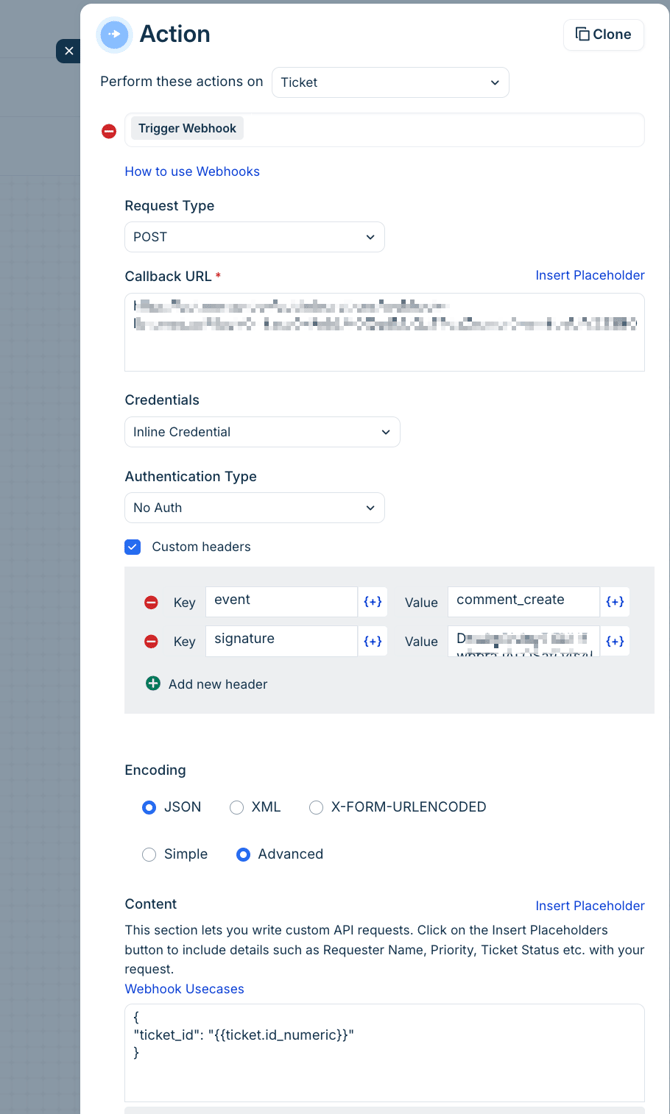
Step 4 — Test it
- Open a Freshservice ticket that is linked to a Siit request and add a comment.
- Check the linked Siit request. The comment should appear on the timeline within a few moments.
Frequently asked questions
Comments aren't showing up in Siit.
Confirm the workflow is published, saved, and activated. Editing a workflow doesn't always publish the change.
Still nothing after activating.
Re-check the Callback URL and the signature header against the values Siit gave you. Paste them again and watch for extra spaces or line breaks.
It worked, then stopped.
Make sure this workflow uses its own comment signature key, not a key from another Freshservice webhook you may have set up.
Just connected and it isn't working yet.
Give it a few minutes after the integration is connected, then try again. If it persists, contact your Siit account manager.