---
title: Triage Agent — Guide
description: Triage Agent Guide
---
[Skip to content](https://help.siit.io/triage-agent-guide#main-content)
[](https://help.siit.io/?hsLang=en)
- [Help Center](https://help.siit.io/)
- [Docs](https://docs.siit.io/)
- [API reference](https://developer.siit.io/api-reference/authentication)
- [Changelog](https://www.siit.io/changelog)
Open main navigation
Close main navigation
- [Help Center](https://help.siit.io/)
- [Docs](https://docs.siit.io/)
- [API reference](https://developer.siit.io/api-reference/authentication)
- [Changelog](https://www.siit.io/changelog)
How can we help?
- There are no suggestions because the search field is empty.
1. [Help center](https://help.siit.io/?hsLang=en)
2. [AI & Agents](https://help.siit.io/ai-agents?hsLang=en)
3. [Overview](https://help.siit.io/ai-agents?hsLang=en#overview)
# Triage Agent — Guide
*Everything you need to set up, configure, and get value from the Triage Agent.*
### **What is the Triage Agent?**
The Triage Agent is a new AI agent built specifically for request intake. It sits in your Slack or Teams channels and handles the full intake flow conversationally — from the moment an employee describes a problem to the moment a structured, fully-formed request lands in your queue.
Unlike AI Assist (which deflects and suggests articles) or the IT Agent (which runs operational playbooks), the Triage Agent is purpose-built for one job: turning employee messages into complete, actionable requests — with every form field filled, every tag applied, and every automation ready to fire.
### **Why it matters**
#### **The problem it solves**
When an employee messages IT in Slack, an admin has to read it, figure out which service it belongs to, ask follow-up questions, and create the request manually. At scale, that process breaks down.
The deeper issue: when AI creates requests today, it only passes along a title, description, and service. Custom form fields arrive empty. Automations don't trigger. Admins chase missing context after the fact.
The Triage Agent closes this gap. It collects every required field conversationally and creates requests with complete, structured data — exactly the way a human admin would.
#### **What changes for admins**
- Requests arrive fully formed: service matched, form fields filled, priority set, tags applied
- Downstream workflows and automations fire correctly from day one
- The full AI conversation is attached to the request timeline — no need to check Slack
- Less time triaging, routing, and chasing missing context
#### **What changes for employees**
- Employees describe their problem in plain language — no need to navigate the service catalog
- The agent guides them through required information naturally, as a conversation
- If a knowledge article can solve the problem, it's surfaced first — no request created unless needed
### **How it works — step by step**
1. Employee sends a message — including any screenshots or files — in a monitored Slack or Teams channel.
2. Agent checks the knowledge base — if a relevant article exists, it suggests it with a summary
3. Employee accepts or declines — via buttons or plain text ("yeah that works" / "no, my problem is different")
4. If the article resolves it, the conversation ends. No request created.
5. If not, the agent moves to intake: it matches the request to the right service from your catalog
6. Agent collects required form fields conversationally — one field at a time, in natural language
7. Priority and tags are set automatically based on the conversation
8. Request is created — either directly or via a pre-filled form the employee reviews before submitting
### **Key features**
### **Conversational knowledge deflection**
The agent reads the full conversation thread to understand intent. Employees can respond naturally — no need to click specific buttons or use exact phrasing.
### **Intelligent service matching**
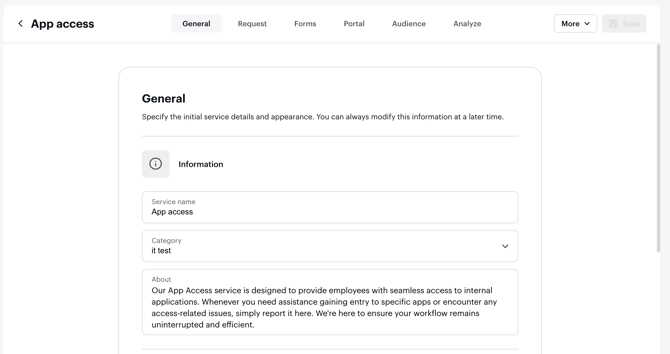
The agent reads your Service Catalog descriptions to match the request to the right service. The more descriptive your service descriptions, the more accurate the matching.
### **Custom form compliance**
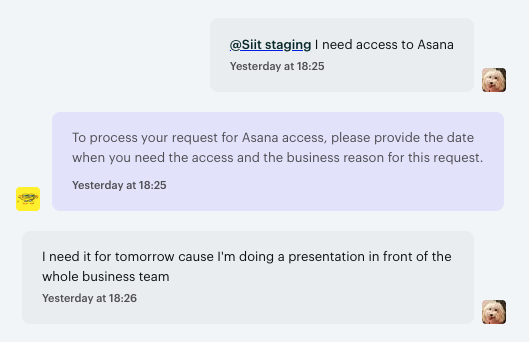
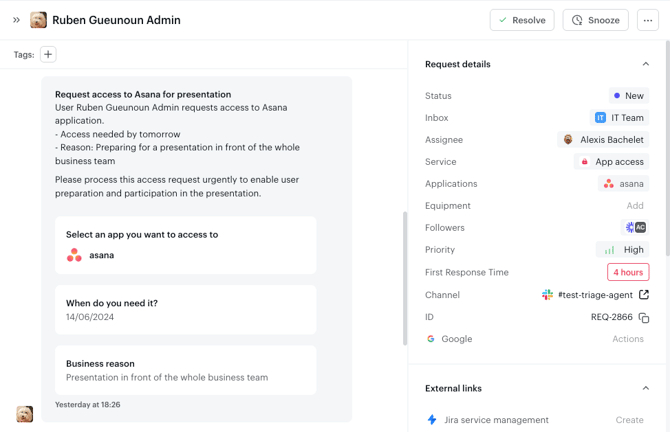
Every required field is collected through conversation and validated against your form's constraints. When the request is created, all fields arrive pre-filled. No missing data, no manual follow-up.
### **Priority and tags**
Set automatically based on the conversation content and service configuration. Requests arrive ready for action.
### **Request on behalf**
Managers can create requests for direct reports through the agent. The agent identifies the requester, confirms, and creates the request on their behalf. The manager is added as a follower automatically.
### **AI conversation on the timeline**
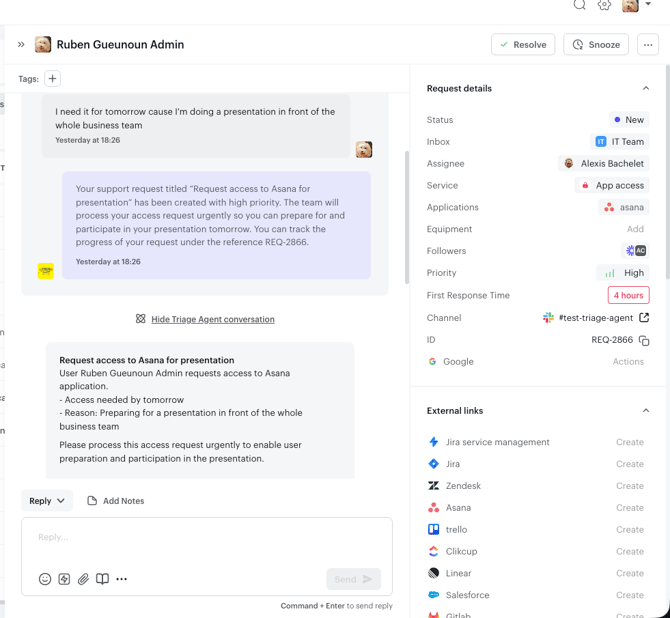
The full conversation is attached to every request. Admins have complete context without leaving Siit.
### **Third-party intervention handling**
If someone else posts in an active agent thread, the agent pauses and resumes only when the original requester or agent is explicitly mentioned again.
### **Configuration**
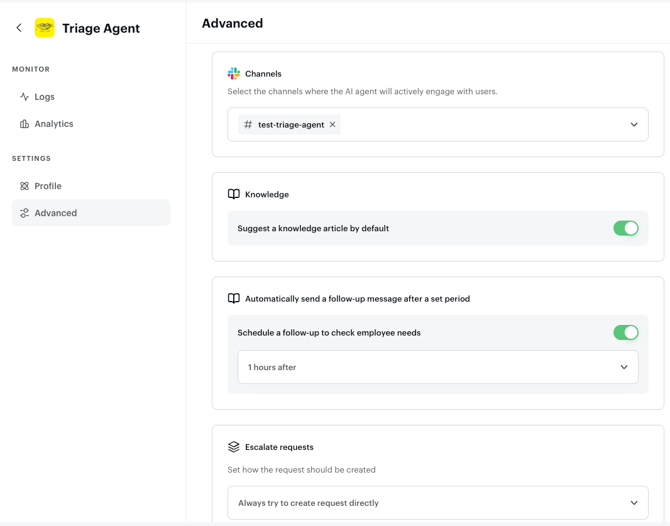
The Triage Agent is configured from **Settings → AI & Agents** in Siit.
### **Reads attachments**
The Triage Agent reads the files an employee shares during intake (screenshots, images, documents and spreadsheets) and uses them. It can pull details out of an attached error screenshot to match the right service and pre-fill form fields, so employees don’t have to re-type what’s already visible in the file they sent.
### **Channels**
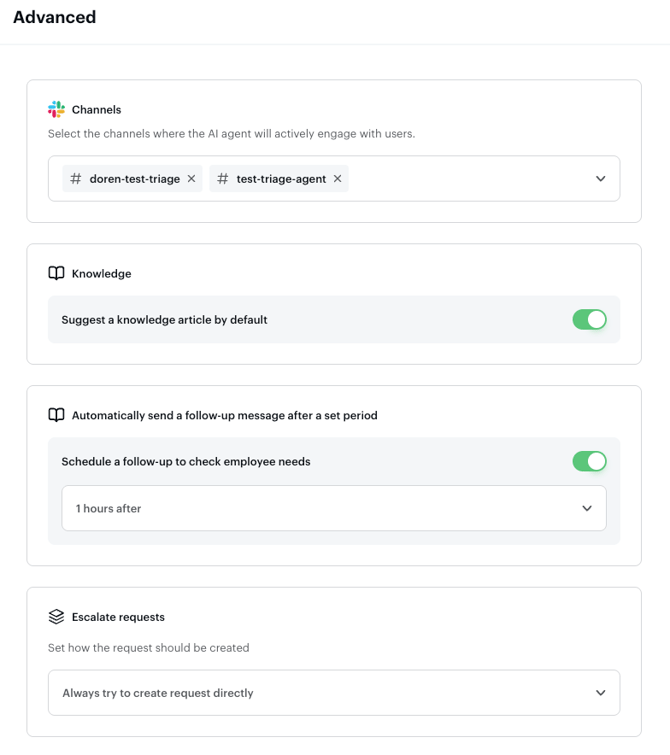
Select which Slack or Teams channels the agent monitors.
### **Knowledge behavior**
Toggle article suggestions on or off. When enabled, the agent always checks the knowledge base before moving to intake.
### **Request behavior**
Choose how the agent creates requests. "Try to create directly" creates the request without a confirmation step. "Always show pre-filled form" lets the employee review and submit before the request is created.
### **Stale reminders**
Set how long the agent waits before sending a reminder on an abandoned conversation.
### Before you start
The Triage Agent works on your existing Siit setup. There is no playbook to create, no separate configuration to maintain, and no data import required. Once you turn it on for a channel, the agent starts running on what you have already configured.
The sections below describe what the agent reads from your setup, and how to shape that setup so it triages with the highest possible accuracy.
**What the Triage Agent uses**
The Triage Agent draws on the operational data already in your Siit workspace:
- **All your published Knowledge Base articles**, to deflect requests before they become tickets.
- **All your live services**, including the About field on each service, to match each request to the right service.
- **Service forms and required fields**, including custom and multi-select fields, to collect and validate every piece of information you need.
- **All user information** (department, office location, apps, equipment, and more), so the agent never asks employees for context already in your workspace.
- **Manager-to-direct-report relationships from your HRIS sync**, needed for Request on behalf to work for managers.
- **Attachments** the employee shares during the conversation (e.g. screenshots and documents), used as extra context for matching and form-filling.
**Recommended setup**
The Triage Agent works on any Siit configuration. A few setup choices noticeably increase accuracy and reduce manual rework:
- **Write descriptive service About fields**. Service descriptions are the primary signal the agent uses for matching. See *Improving service matching accuracy* below.
- **Keep your forms focused**. Forms with 3 to 6 distinct, well-labeled fields perform better than long forms with overlapping or ambiguous fields. Multi-select options should describe distinct scenarios, not synonyms.
- **Maintain an up-to-date Knowledge Base**. Out-of-date or duplicated articles weaken deflection quality. The agent surfaces what you publish, including stale content.
**Improving service matching accuracy**
The Triage Agent uses your Service Catalog descriptions to match requests to the right service. The About field on each service plays a direct role in AI accuracy.
Tips for writing effective service descriptions:
- Describe what the service is for in plain language, as if explaining it to a new employee.
- Include the types of requests it covers, for example: "Use this service for VPN access issues, remote connectivity problems, or network login failures."
- Avoid internal jargon or abbreviations employees would not use when describing a problem.
**Enable the Triage Agent**
Activation takes two steps:
1. Go to **Settings → AI & Agents** and turn the Triage Agent on.
2. Select the Slack or Teams channels you want it to monitor.
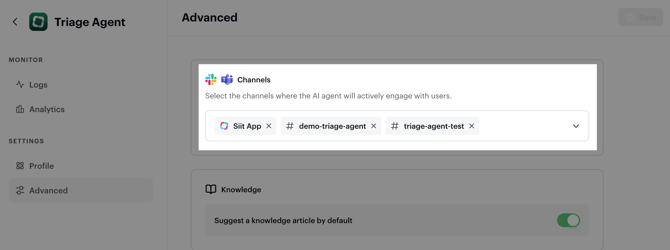
The agent starts triaging the next message it sees in those channels. Everything else, including knowledge behavior, request behavior, and stale reminders, has sensible defaults you can adjust later from the same screen.
### **Availability**
The Triage Agent is part of our **Pro plan**. If you're not on Pro yet, you can still explore it with a **14-day free trial** to test it in your environment.
- [Getting started](https://help.siit.io/getting-started?hsLang=en#main-content)
- [For Admins](https://help.siit.io/getting-started?hsLang=en#for-admins)
- [Employee Guides](https://help.siit.io/getting-started?hsLang=en#employee-guides)
- [Request and Service Management](https://help.siit.io/request-and-service-management?hsLang=en#main-content)
- [Request](https://help.siit.io/request-and-service-management?hsLang=en#request)
- [Email](https://help.siit.io/request-and-service-management?hsLang=en#email)
- [Service catalog](https://help.siit.io/request-and-service-management?hsLang=en#service-catalog)
- [SLAs](https://help.siit.io/request-and-service-management?hsLang=en#slas)
- [App access](https://help.siit.io/request-and-service-management?hsLang=en#app-access)
- [AI & Agents](https://help.siit.io/ai-agents?hsLang=en#main-content)
- [Overview](https://help.siit.io/ai-agents?hsLang=en#overview)
- [Setup](https://help.siit.io/ai-agents?hsLang=en#setup)
- [Use cases](https://help.siit.io/ai-agents?hsLang=en#use-cases)
- [Automations and Workflows](https://help.siit.io/automations-and-workflows?hsLang=en#main-content)
- [Getting started](https://help.siit.io/automations-and-workflows?hsLang=en#getting-started)
- [Use cases](https://help.siit.io/automations-and-workflows?hsLang=en#use-cases)
- [Integrations](https://help.siit.io/automations-and-workflows?hsLang=en#integrations)
- [Reporting and Analytics](https://help.siit.io/reporting-and-analytics?hsLang=en)
- [Integrations](https://help.siit.io/integrations?hsLang=en#main-content)
- [Communication](https://help.siit.io/integrations?hsLang=en#communication)
- [HRIS](https://help.siit.io/integrations?hsLang=en#hris)
- [Ticketing](https://help.siit.io/integrations?hsLang=en#ticketing)
- [Knowledge base](https://help.siit.io/integrations?hsLang=en#knowledge-base)
- [Identity Provider](https://help.siit.io/integrations?hsLang=en#identity-provider)
- [Device Management](https://help.siit.io/integrations?hsLang=en#device-management)
- [Knowledge Base Management](https://help.siit.io/knowledge-base-management?hsLang=en)
- [Admin, Security & Workspace](https://help.siit.io/admin-security-workspace?hsLang=en#main-content)
- [Workspace Settings](https://help.siit.io/admin-security-workspace?hsLang=en#workspace-settings)
- [SSO (SAML)](https://help.siit.io/admin-security-workspace?hsLang=en#sso-saml)
- [SCIM & Provisioning](https://help.siit.io/admin-security-workspace?hsLang=en#scim-provisioning)
- [People & Directory](https://help.siit.io/admin-security-workspace?hsLang=en#people-directory)
[](http://siit.io)
Copyright © 2025, Siit SAS
```json
{
"@context" : "https://schema.org",
"@type" : "VideoObject",
"caption" : {
"@type" : "MediaObject",
"contentUrl" : "https://help.siit.io/media-transcripts/396557720766/en.vtt",
"inLanguage" : "en",
"name" : "en Captions"
},
"contentUrl" : "https://25419906.fs1.hubspotusercontent-eu1.net/hubfs/25419906/video_assets/396557720766/inherited/web_optimized.mp4",
"dateModified" : "2026-07-23T13:58:28.778Z",
"duration" : "PT2M55.616S",
"height" : 1080,
"name" : "Triage agent demo",
"thumbnailUrl" : "https://25419906.fs1.hubspotusercontent-eu1.net/hubfs/25419906/Triage%20agent%20demo.mp4/medium.jpg",
"uploadDate" : "2026-04-25T19:26:38.563Z",
"width" : 2008
}
```